The complete reference

Everything RadCalendar does, explained properly.

Not a feature list. This is the same documentation managers and staff read inside the product, with real screenshots of a real roster — readable before you have an account, and still the place to look once you do.

For managers

Running the roster.

Twenty topics, in the order you meet them: set the department up, get your people in, build the week, let the engine help, then keep it honest.

Setup

Model your department the way it actually runs.

Sites hold workplaces; workplaces hold their own shift library. Capabilities nest as deeply as your equipment demands, and a workplace can have more than one valid way to staff a day.

Manager home screen showing sites and workplaces on the left and the staff tree grouped by team on the right, with capability filters.

Sites and workplaces on one side, the establishment on the other.

Getting started / setup order

RadCalendar has a handful of building blocks that depend on each other. Setting them up in this order means you never hit a "there's nothing to pick" dead end.

  1. Sites & Workplaces — create the actual location(s) staff get rostered into. Everything else (shift types, home base, roster assignments) hangs off a workplace, so this comes first.
  2. Capabilities(optional at this point) — the shared skill vocabulary shift types and staff are checked against. You can set these up now on the Capabilities page, or skip ahead and add them inline the first time you build a shift type that needs one — whichever's less friction.
  3. Shift Library — inside each workplace, define the actual shift types (Early CT, Late Ultrasound, etc.) with their times, how many people they need, which days they run, and what capability they require. Shift types must belong to a workplace, so step 1 has to exist first.
  4. Staff— add people one at a time or via bulk import, then open each one's staff card to tick their capabilities, set a priority ranking, an FTE target, and any fixed day rules. Ticking a capability only makes sense once step 2's list exists.
  5. The roster itself — with workplaces, shift types, and staff all in place, the roster calendar can actually offer something to assign into every cell, and the suggestion engine has enough information (capabilities, targets, constraints) to produce useful candidates rather than an unranked staff list.

Why this order specifically

Each step is a prerequisite for the data entry in the next one to be anything other than tedious guesswork: you can't pick a workplace for a shift type that doesn't exist yet, you can't tick a capability that hasn't been named, and the roster calendar's "Suggest" scoring is only as good as the capabilities/targets/constraints you've already told it about on each person's staff card.

None of this is enforced by the app — you can create staff before workplaces, or a shift type before any capabilities exist. The order above is just the path with the least backtracking for a brand-new organisation.

Sites & Workplaces

Found in the "Sites & Workplaces" card on your main manager dashboard.

What's the difference?

  • A siteis purely organisational — a physical building, e.g. "Footscray Hospital". It doesn't get shift types or roster entries of its own; it's just a folder for grouping workplaces.
  • A workplaceis the actual assignable/schedulable unit — e.g. "Footscray Ultrasound". Shift types belong to a workplace, and every roster assignment is (workplace, day, shift type). This is the thing that actually matters for rostering.

Sites are optional

A workplace doesn't need a site — leaving one "ungrouped" is completely fine and common for a small single-location organisation. The Ungroupedsection is always shown and can't be deleted; it just holds any workplace that isn't filed under a site.

Adding one

Use the "Add site" or "Add workplace" mini-forms at the bottom of the card. A new workplace can optionally be filed under an existing site right away, or left ungrouped and moved later.

Reordering and moving (drag-and-drop)

  • Drag a workplace card onto a site's card (or onto "Ungrouped") to file it there.
  • Drag a site's header (the name/rename row at the top of its card) onto another site's card to reorder sites relative to each other.

Renaming and deleting

Both sites and workplaces rename inline — type in the small text field next to the name and it saves automatically (you'll see a brief "Saving…" / "Saved" indicator). Deleting a site ungroups its workplaces rather than deleting them; deleting a workplace removes it and its entire shift library— you'll get a confirm prompt naming the workplace before this happens.

From a workplace's card, "Shift library →" is the way into that workplace's shift types — see the Shift Library topic.

Capabilities

Capabilities are the shared vocabulary that shift requirements and staff skills are matched against — things like CT trained, Ultrasound trained, X-ray trained, or Cath Lab trained.

Two ways to create one

  • Up front, on the dedicated Capabilities page (linked from the main manager nav) — a simple list where you can add, rename, or delete capabilities for your whole organisation.
  • Inline, while building or editing a shift type— the "Required capabilities" section of the shift type form has its own "+ add capability" box right there. Type a name and press Add (or Enter) and it's created and ticked for that shift type immediately — no need to leave the form or set anything up beforehand.

Both paths write to the same organisation-wide list, so a capability created inline while editing a shift type shows up on the Capabilities page too, and vice versa. One difference: the inline box can only create top-level capabilities — it has no parent picker. To nest one under another, create it on the Capabilities page instead.

Sub-capabilities

A capability can be nested under a parent — "MSK Ultrasound" under "Ultrasound" — using the "Parent capability (optional)" picker when you create it. The list then renders as an indented tree, and nesting can go more than one level deep.

The rule this buys you: holding a sub-capability counts as holding everything above it. Someone ticked for "MSK Ultrasound" alone is eligible for a shift requiring "Ultrasound", without needing both ticked. This applies consistently wherever eligibility is decided — the suggestion engine, auto-fill, the write-time check when you actually assign someone, and the conflict re-check on existing assignments. Ticking a parent in the roster's capability filter matches its descendants too.

Two places do notexpand the hierarchy, and both can look like bugs if you're not expecting it. The Manager page's "filter by capability" on the staff list matches only exactly what's ticked, so filtering to "Ultrasound" won't list someone who only holds "MSK Ultrasound" — even though that person is genuinely eligible for Ultrasound shifts. The drag-and-drop capability warning on the roster grid has the same blind spot: it can warn you about someone who is in fact qualified through a sub-capability.

A parent capability is otherwise an ordinary capability in its own right — you can require it on a shift type and tick it on a staff card directly, and doing so says nothing about the children.

Where capabilities get used

  • On a shift type, as a requirement — see Shift Library.
  • On a staff member's card (Rostering tab), ticked as something they have, with an optional priority rank if they hold more than one.
  • Feeding the roster's suggestion scoring — a candidate's best-ranked matching capability earns them the "top-ranked skill" badge tag.
Deleting a capability removes the tick everywhere it was used — both from any staff member who had it and from any shift type that required it — you'll get a confirm prompt warning about this before it happens. Any sub-capabilities underneath it are not deleted with it: they survive, promoted to top-level capabilities. Anyone who held one keeps it, but it no longer implies the parent you just removed.
The capabilities screen listing CT, MRI, Ultrasound, X-ray, Nuclear Medicine and Interventional, each with its nested sub-capabilities such as MRI 3.0T and MRI 1.5T.

Capabilities nest. MRI 3.0T is a child of MRI, so someone signed off on the child satisfies a shift asking for the parent — not the other way round.

Shift Library

Each workplace has its own Shift Library — reach it from "Shift library →" on that workplace's card in Sites & Workplaces. This is where you define the actual shift types staff get rostered into.

Fields on a shift type

  • Shift name— e.g. "Early CT".
  • Start / End— the shift's time range; the library also shows the calculated hours next to each shift.
  • Colour— used as the background colour for that shift's pills everywhere on the roster calendar, so you can tell shift types apart at a glance.
  • People needed— how many staff need to be filled into this shift simultaneously. Once that many are assigned, the roster grid marks the row "Full (n/n)" and stops offering an empty slot.
  • Required capabilities — tick any capability a person must have to be considered an eligible match for this shift (see the Capabilities topic for how to add one inline right here, without leaving the form).
  • Shift period— Morning, Day, Evening, Night, or Other. Two things read this: the roster filter bar's "Shift period" dimension, and the time-of-day continuity rule, which uses it to spot someone being bounced between periods too often (see Match Settings).
  • Training shift — a checkbox. On a shift flagged this way, someone with an active training assignment for a required capability counts as having it, and auto-fill deliberately leaves these slots until last. See Training assignments.
  • Minimum staff level — None, Trainee, Qualified, or Senior. When set, anyone below that level is excluded from suggestions for this shift. An unsetStaff level on a person's card is not a wildcard — it fails every level requirement. This gate is independent of capabilities and of training: being in training for the right capability doesn't help someone clear it.
  • Allowed days — a 7-day checkbox row (all ticked by default). Only the ticked days show this shift type as an option on the roster grid for that day of the week at all.

Adding and editing

Use the "Add shift type" form at the bottom of the page to create a new one. Each existing shift type has an "Edit" disclosure — click it to reveal the same fields pre-filled; changes here autosave as you type or as soon as you change a field (blur or change event), with a live "Saving…" / "Saved" indicator — there's no separate save button to remember to click.

Deleting

Each shift type has its own "Delete shift type" button with a confirm prompt naming it — this cannot be undone.

The other two sections on this page

Below the shift types themselves, the same page holds two features with their own topics:

  • Coverage groups — for an area that can be staffed one of several alternative ways, with one option chosen per day.
  • Blackouts — taking the workplace, or one shift type at it, out of service for a date range.
If you tighten Allowed Days on a shift type that already has people rostered on a now-disallowed day, those existing assignments aren't deleted — the roster grid instead shows them under a "Not allowed on this day" section so you can see and deal with the mismatch rather than losing the assignment silently.

Coverage groups

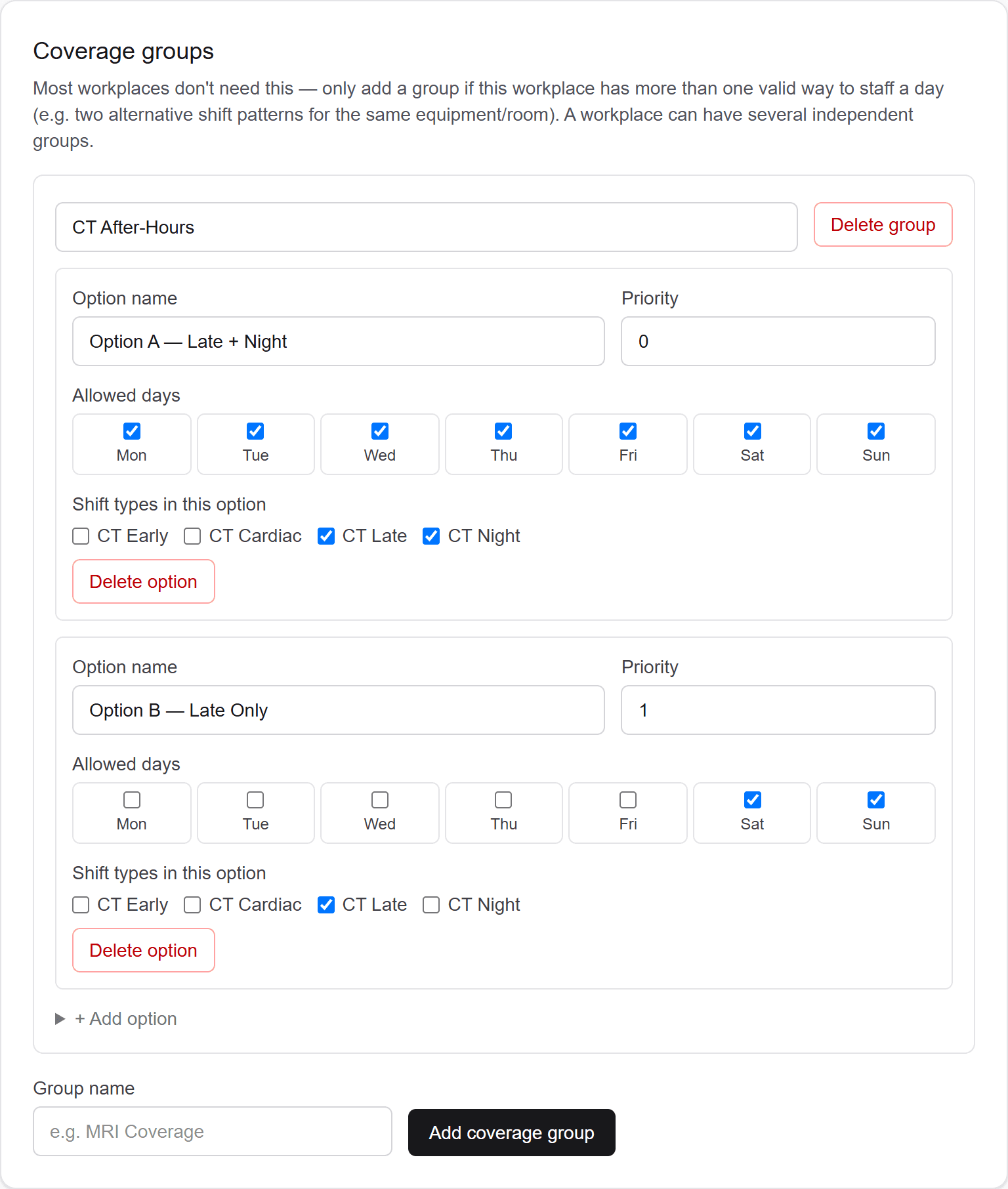
A coverage group says "this area can be staffed one of several ways, and we pick one per day" — e.g. MRI run either as one long shift or as an early/late pair, but never both. Managed from the "Coverage groups" section on a workplace's Shift Library page.

Groups and options

A groupis just a name ("MRI Coverage") belonging to one workplace. Inside it you add two or more options, each of which has:

  • Option name— e.g. "Option A".
  • Priority — a number, lower wins. This is the fallback preference, not a hard ranking; see below for exactly when it's consulted.
  • Allowed days— which days of the week this option is even a candidate on. A day no option allows is a "gap day": the group contributes nothing and those shift types simply don't appear.
  • Shift types— which of the workplace's shift types this option puts into play. A shift type that isn't in any option behaves exactly as it always has, unaffected by all of this.

How a day gets decided

Only one option is "active" per group per date, and its shift types are the only ones from that group that get rows on the grid. The choice is made in this order:

  • A choice already recorded for that date — a manager's override, or a previous auto-fill run's resolution — always wins.
  • If any of the group's shift types already has someone rostered that date, no choice is forced: every candidate option's shift types are shown, so existing work isn't hidden.
  • Otherwise, when auto-fill runs it trial-fills each candidate option, discards any it couldn't staff completely, and picks the one with the best total candidate score — falling back to lowest priority number only to break a tie. If no option can be fully staffed, none is chosen and the day is left alone.
On a plain page view — before auto-fill has ever run for that date — the grid just displays the lowest-priority-number candidate option, so there's always something sensible to look at. That's a display default, not a decision: nothing is recorded, and auto-fill can still land on a different option when it runs.

The badge, and overriding by hand

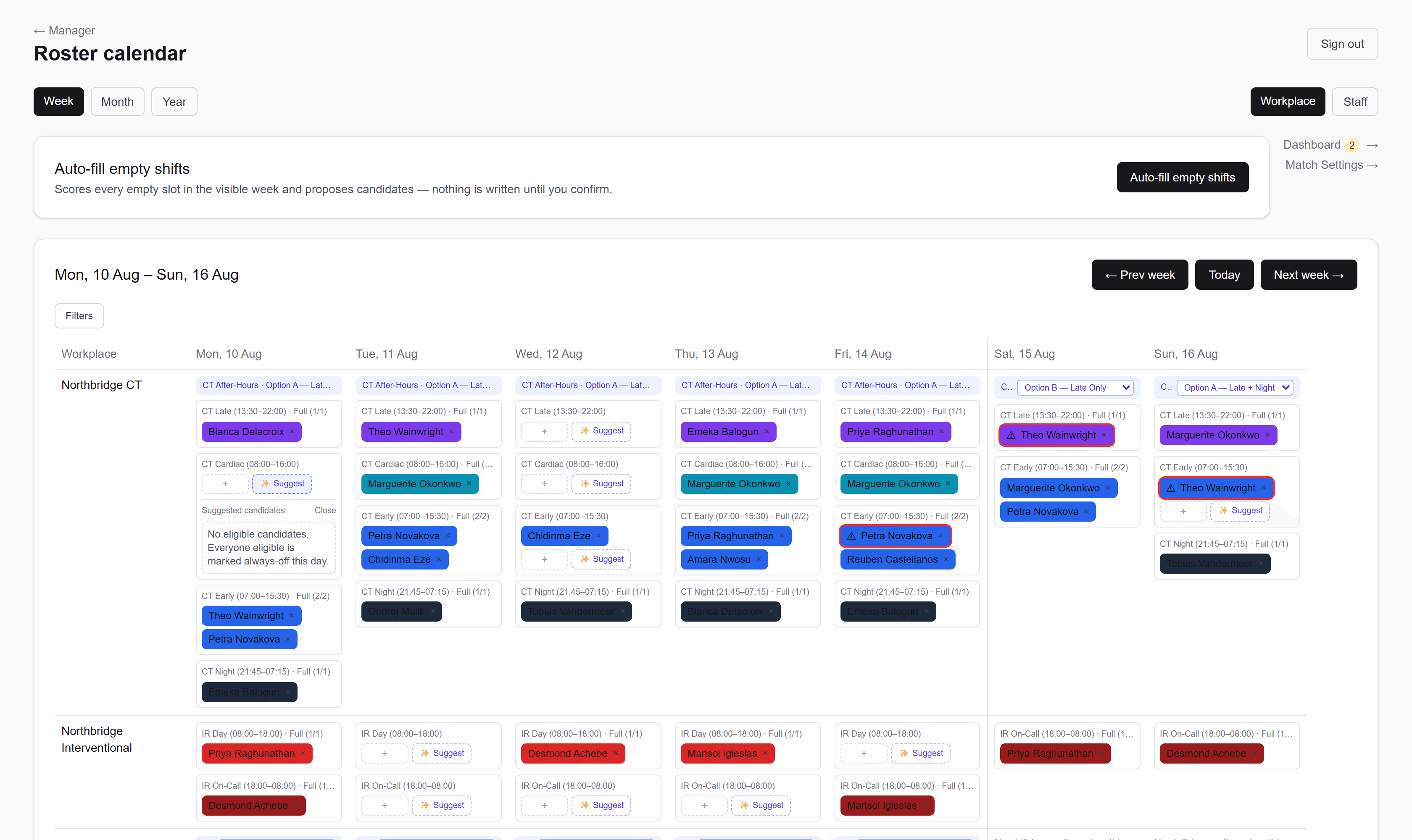
Each cell covered by a group shows an indigo badge reading "MRI Coverage · Option A". When more than one option is a candidate that day, the badge carries a dropdown — pick a different option and it takes effect immediately for that date only, replacing whatever was resolved before. A group with only one candidate option that day shows the badge with no dropdown, since there's nothing to switch to.

Switching options doesn't move or delete anyone. If people are already rostered onto Option A's shift types and you switch to Option B, those assignments still exist — they'll show up under "Not allowed on this day" in that cell, for you to move or remove deliberately. Blacked-out shift types are excluded from option resolution too, so a blackout can change which option is pickable. See Shift blackouts.
The coverage groups panel for Northbridge CT, showing a group named CT After-Hours with Option A (Late + Night) at priority 0 and Option B (Late Only) restricted to Saturday and Sunday.

Two valid ways to staff the same day, defined once. Only one option ever runs on a given date.

Shift blackouts

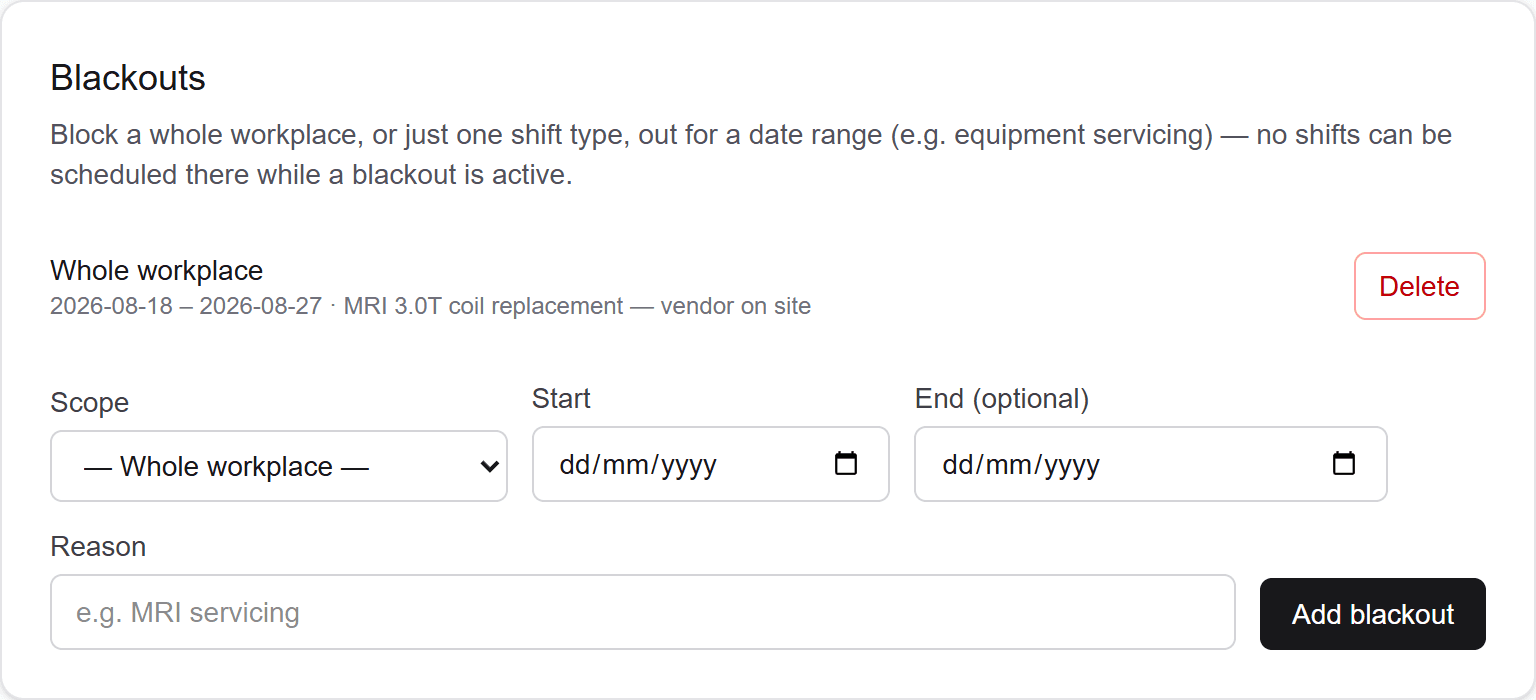
A blackout takes a workplace, or one shift type at it, out of service for a date range — scanner servicing, a ward closure, a public holiday. Managed from the "Blackouts" section on a workplace's Shift Library page.

Adding one

  • Scope— either "— Whole workplace —", which blacks out every shift type there, or a single named shift type, leaving the rest of the workplace running normally.
  • Start — the first date affected.
  • End (optional) — the last date affected, inclusive. Leave it empty for a single-day blackout.
  • Reason— free text and optional, e.g. "MRI servicing". It's shown to managers on the roster grid, so it's worth filling in.

On the roster grid

A blacked-out shift type doesn't vanish from its cell — it renders as a plain, greyed row reading "Blacked out until {date}{reason}." with no "+" button and no Suggest button. The point is that a manager can see why there's no coverage there, rather than wondering where the shift went.

Tick Blacked out only in the Filters panel to see just these rows across the week.

It is refused, not just discouraged

Auto-fill skips blacked-out slots entirely and won't propose anyone for them, and coverage-group resolution is blackout-aware too. Manual assignment is now refused as well — assigning, moving or handing over into a blacked-out shift is rejected with the blackout's end date and reason, whether you go through an assign form, the move and replace controls, or by dragging a chip onto it. There is no "assign anyway" override: unlike a double-booking, a blackout usually means the room or the scanner physically isn't there.

Existing assignments are a separate matter. Blacking out a date range that already has people rostered on it leaves those assignments exactly where they are — the refusal applies to new writes, not retrospectively. Staff view marks such a chip "Blacked out until {date}", and the Blacked out only filter will find them, but conflict checking does not currently list them. So after adding a blackout over a week that was already built, it is still worth a look through the affected days.
The blackouts panel for Northbridge MRI showing a whole-workplace blackout from 18 to 27 August 2026 with the reason 'MRI 3.0T coil replacement — vendor on site'.

A blacked-out workplace stops generating demand, so a fortnight of servicing reads as no shifts rather than a fortnight of shortfall.

Your people

Every constraint a real person carries.

Capabilities and sub-capabilities, training level, employment type, FTE target, cycle length, always-off days, a home workplace — all on one card, all feeding the matching engine.

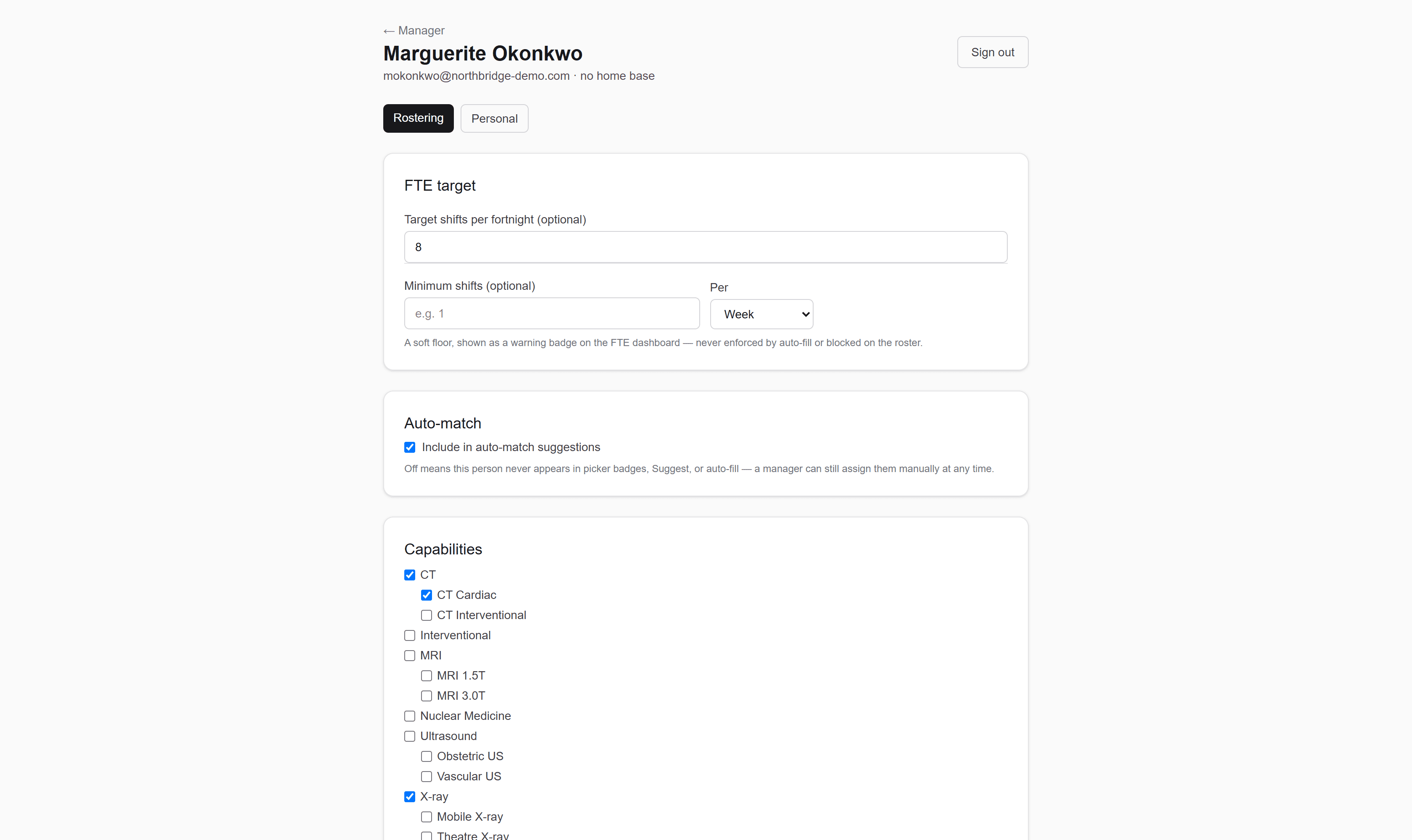
A staff card showing FTE target, auto-match toggle, capabilities and priority ranking for a senior radiographer.

One card per person; everything the roster needs to know about them.

Staff

The "Staff" card on your main manager dashboard is where people get added to your organisation and organised for browsing.

Adding people

  • One at a time— the "Add staff member" form at the bottom of the card: name (optional), email (required, becomes their login), a temporary password you set (min. 8 characters — they're forced to change it on first login, see Passwords & accounts), and an optional home base.
  • Bulk import— "Bulk import staff →" opens a page where you paste a list, one person per line, as First,Last,email@example.com. Nothing is created until you've reviewed a preview and explicitly confirmed it.

Everything else about a person — capabilities, priority ranking, FTE target, fixed day rules, usual patterns — is set afterwards on their own staff card, not at creation time.

Groups and subgroups

Staff can be organised into groups and nested subgroups purely for browsing convenience — this has no effect on rostering at all, it just controls how the list on this dashboard is arranged. Drag a staff member onto a group, subgroup, or "Ungrouped" to file them there; drag a group's header onto another group at the same level to reorder siblings. "+ Subgroup" nests one level under a top-level group. Deleting a group or subgroup doesn't delete its members — they become ungrouped.

Withina group, people are listed alphabetically by name (or by email, for anyone who hasn't been given a name yet). That ordering is automatic and isn't something you set. The groups themselves stay in the order you dragged them into — sorting applies to the people inside a group, never to the groups.

Finding someone: search and filters

Search by name— the box above the list narrows it as you type. It matches anywhere in the name, not just the start, so "brown" finds both "Bob Brown" and "Sara Brownlee", and case doesn't matter. Anyone without a name set yet is matched on their email instead, so they stay findable. People who don't match are hiddenrather than greyed out. "Clear" empties the box and brings everyone back.

Filter by capability — tick one or more capabilities to show only staff who have at least oneof the ticked capabilities (not all of them) — useful for finding, say, everyone who's CT trained regardless of which group they're filed under. "Clear filter" resets it.

Using both at once narrows to people who satisfy both— a name search for "bob" with CT ticked shows only the Bobs who are CT trained, not every Bob and every CT-trained person.

If nothing matches, you'll get an explicit "No staff match…" line naming what you searched for. Without it the group cards would all fall back to their "Drop a staff member here." placeholder, which looks identical to genuinely empty groups — so an over-narrow search could easily read as though your staff had vanished.

Both are view-only conveniences for this page — neither affects rostering, and neither is remembered once you navigate away. The roster calendar's Staff view has its own separate name search (see Staff view).

Home base

Home base is only a display default — it is nota security or access boundary. Staff can see the whole organisation's roster regardless of their home base, and where someone actually works on any given day is decided per-shift on the roster calendar, not fixed by this setting.

Managers show up here too

Fellow managers appear in the same staff list (tagged "Manager") and can be rostered, given capabilities, and managed through the same staff card as anyone else — a manager is rosterable staff, not a separate category kept apart from the roster.

The staff card

Every person (staff or manager) has one staff card, opened via "Open card →" (or "My rostering profile →" on your own row) from the Staff list. It's split into two tabs: Rostering and Personal.

Every section folds away

Each heading on both tabs is a fold — click it to open or close that section. Some start open (FTE target, Capabilities, Fixed day constraints or Availability, Leave, Basic details, Notes) and the configure-once ones start closed, so the card fits on a screen instead of being a long scroll. Danger zone starts closed too, which is deliberate: deleting an account takes an extra click to even reach.

Open and closed is a fresh start every visit — it isn't remembered between page loads, and it isn't per-person. Collapsing a section never discards anything: a field you just edited still saves while its section is shut.

Rostering tab

  • FTE target— "Target shifts per fortnight" (or "Target hours per cycle", depending on which mode your organisation's Match Settings is in), an optional number. When set, the suggestion engine flags this person "under target" or "over target" based on how much they already have in the current period. The two targets are separate fields — switching mode doesn't convert one into the other, so someone with only the other mode's target filled in reads as having no target at all.
  • Minimum shifts— sits directly under FTE target. A separate, optional floor: a number of shifts and a period (Week / Fortnight / 4 weeks) of your choosing, independent of the FTE target above. It's purely informational — it never affects suggestions or auto-fill, it only drives a "Below minimum" badge on the FTE/Hours Dashboard, checked against shifts worked in that person's own chosen period (a weekly minimum is checked against the current week, not always a fortnight).
  • Auto-match— its own section, a single "Include in auto-match suggestions" checkbox. Switched off, this person never appears in picker badges, the Suggest shortlist, or auto-fill — but a manager can still assign them manually at any time. It has no effect on manual assignment at all, only on the scored suggestion surfaces.
  • Capabilities— tick which capabilities this person has, from your organisation's capability list (see Capabilities — if the list is empty you'll be prompted to set it up first).
  • Priority ranking— appears once at least one capability is ticked. Rank them 1, 2, 3… in order of preference if this person has more than one — their best (lowest-numbered) rank feeds the "top-ranked skill" score bonus in suggestions.
  • Training— puts this person into timed training for a specific capability. Its own topic, Training assignments, covers this in full — it's substantial enough to deserve one.
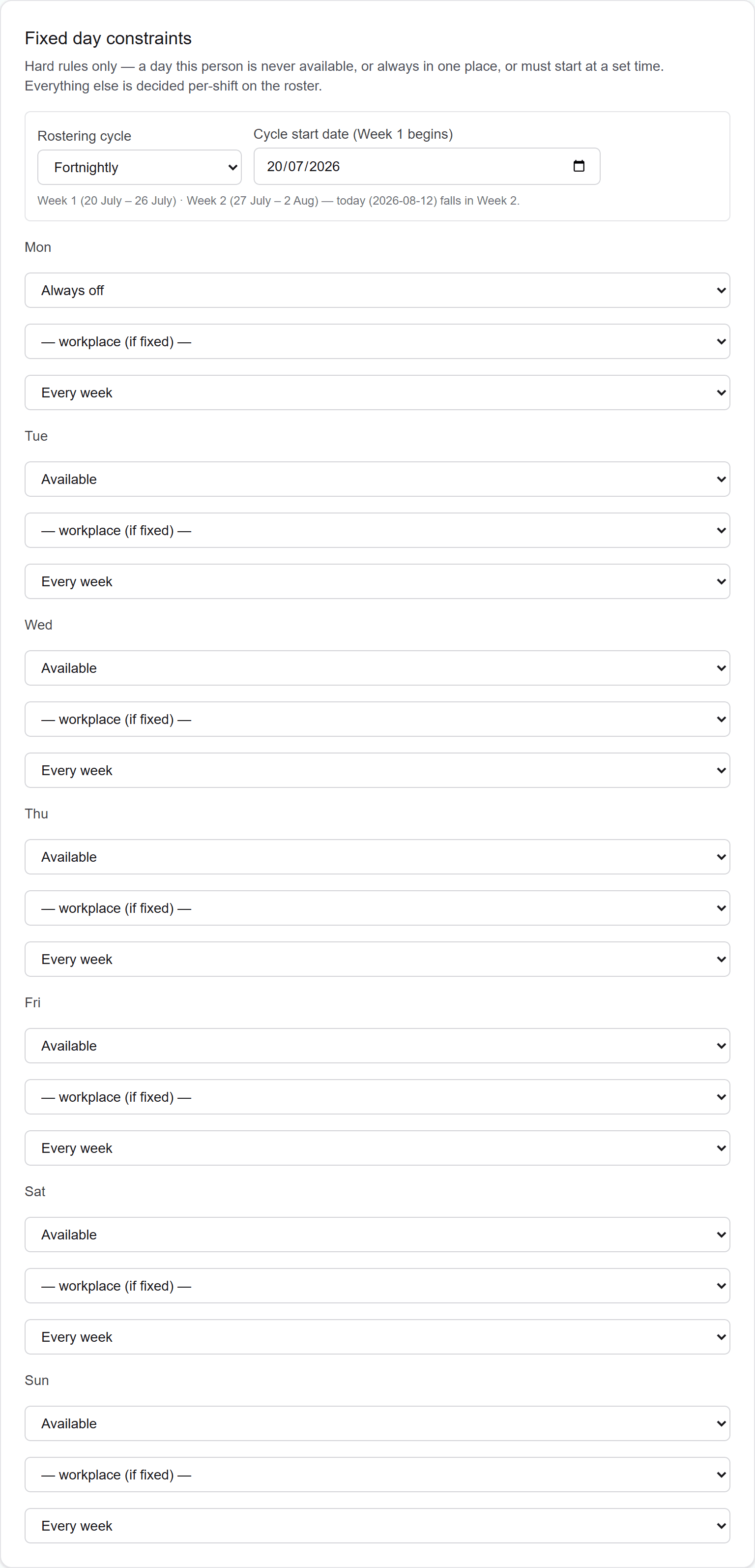
  • Fixed day constraints (permanent staff) — hard rules only: per day of the week, mark this person Available (the default), Always off, Fixed to workplace (locks them to one specific workplace on that day), or Fixed start time (locks them to one specific start time on that day — useful for someone who only ever works, say, the early shift regardless of which workplace). This section also holds the rostering cycle control for longer patterns — see Cycle constraints.
  • Availability(bank/agency staff only) — replaces Fixed day constraints entirely once Employment type (Personal tab) is set to Bank or Agency, since a regular weekly pattern doesn't apply to non-permanent staff. A simple date-by-date list: this person is only ever suggested for a shift on a date you've logged here.
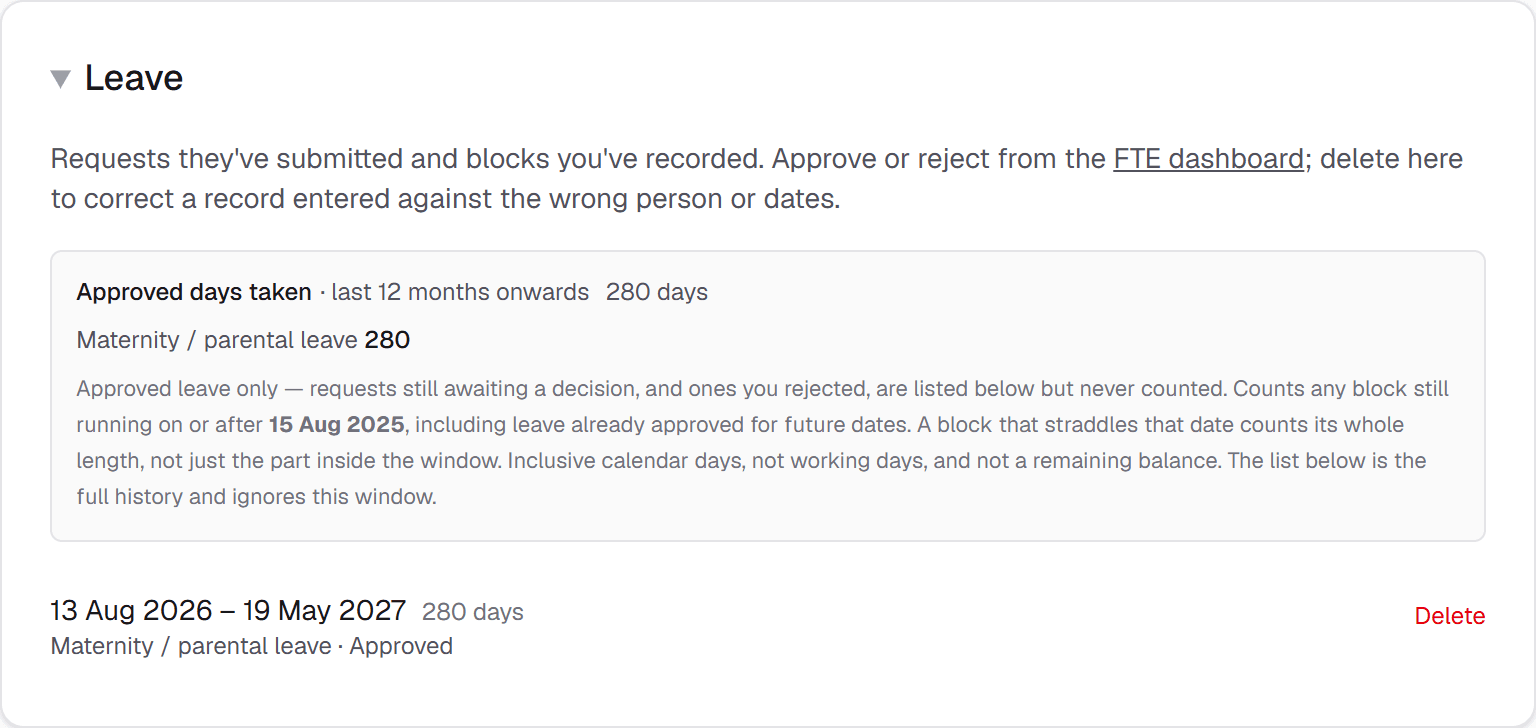
  • Leave— every leave record on file for this person, whatever its state: requests they submitted, blocks you recorded, and decisions you've already made. You can delete a record here to fix one entered against the wrong person or dates, but you approve and reject from the FTE Dashboard, not here. At the top sits Approved days taken · last 12 months onwards — a running total with a split across your organisation's own leave types, in the order you arranged them. It counts approved records only: a request still awaiting your decision, or one you rejected, appears in the list underneath but is never counted as time taken. The window is a rolling one with a floor but no ceiling: any block still running on or after the date 12 months ago counts, and so does leave already approved for future dates. A block that straddles that date counts its whole length, not just the part inside the window. Inclusive calendar days, so an 18–20 August block counts three; not working days, and emphatically not a remaining balance — RadCalendar has no entitlement or accrual model. The record list below the total is full history and ignores the window entirely. See Leave and absence.
  • Shift pattern— optional per-cycle-week shift shape (e.g. "3× 12hr Evening, Week 1"). Once configured, it's a hard rule like Fixed day constraints above, not just a suggestion.
  • Usual patterns— optional, and deliberately the opposite of the constraints above: pick a workplace, shift type, and day this person usually works. It never blocks or excludes anything, and it never fills the roster automatically — it just shows up as a one-click "↻ name" suggestion chip on a matching empty roster cell that a manager can choose to apply or ignore.
The distinction that matters: a fixed day constraint (Always off / Fixed to workplace / Fixed start time), an availability gap for bank/agency staff, and a configured shift pattern are all hard rules the roster and suggestion engine actively enforce — each can exclude this person from a slot entirely. A usual pattern is only ever a one-click suggestion — it never excludes anything and never assigns anyone without a manager clicking it.

Personal tab

  • Basic details— name, Employment type (Permanent / Bank / Agency — see the note below), Staff level (unset / Trainee / Qualified / Senior — gates any shift with a "Minimum staff level" set in the Shift Library; unset does notcount as a wildcard, it fails any level requirement), and their real login email (changing it takes effect immediately, with a confirm prompt — no verification email is sent, and it doesn't touch their password). Also has a one-click "Reset password" shortcut here that resets straight to the shared default temporary password, rather than generating a random one.
  • Notes — free text, manager-only. This person can never see their own notes, on their own profile or anywhere else.
  • Coworker clashes & preferences— pick another staff member and mark the relationship as a Clash (this pairing is scored down in suggestions, and shows a "clashes with X" tag) or a Preference (scored up, "preferred alongside X" tag). Neither is a hard block — both are suggestion-engine signals only.
  • Danger zone— permanently deletes this person's account and login, their capabilities, priority ranking, fixed day constraints, shift pattern, coworker relationships, usual patterns, training assignments, and manager notes. Their past roster history is kept (shifts they already worked still show their name). This cannot be undone, and isn't available on your own card.
Employment type— switching a person to Bank or Agency changes how they're matched everywhere: they need a logged Availability date to be suggested for anything at all (see above), and even when available, they're always ranked below every permanent candidate — shown with an "agency — last resort" or "bank — last resort" tag. They're never excluded outright just for being non-permanent, only ranked last resort.

See also Training assignments and Suggestions & auto-fill for how everything on this card actually affects who gets suggested.

The fixed day constraints section of a staff card, with always-off days and fixed-workplace rules per weekday.

Everything a real person carries — targets, capabilities, always-off days, a home workplace — lives on one card.

Building the roster

Two views, one week — and the months after it.

Paint the week by workplace or by person, filter it seven ways, and zoom out to check whether the quarter is even staffable before it arrives.

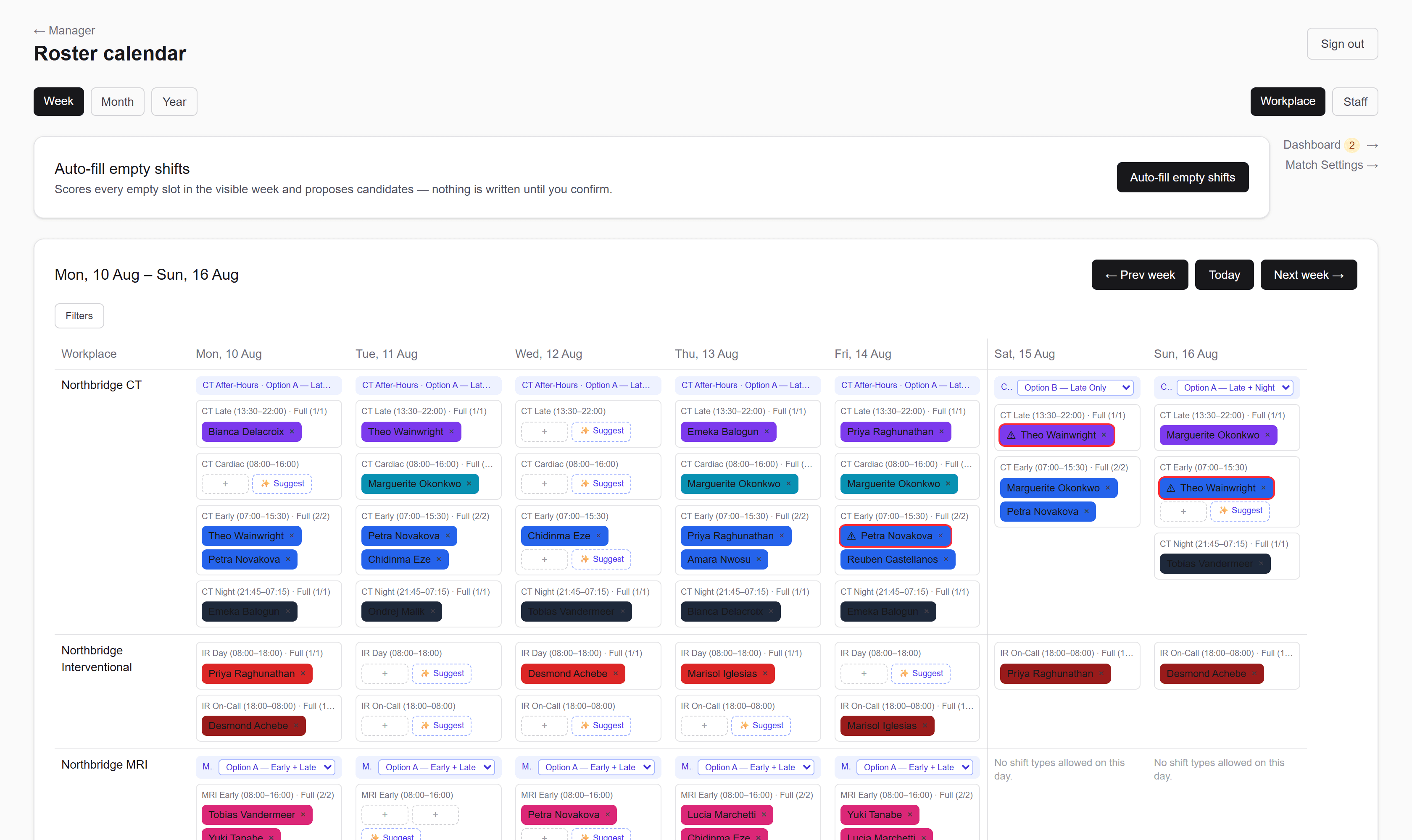
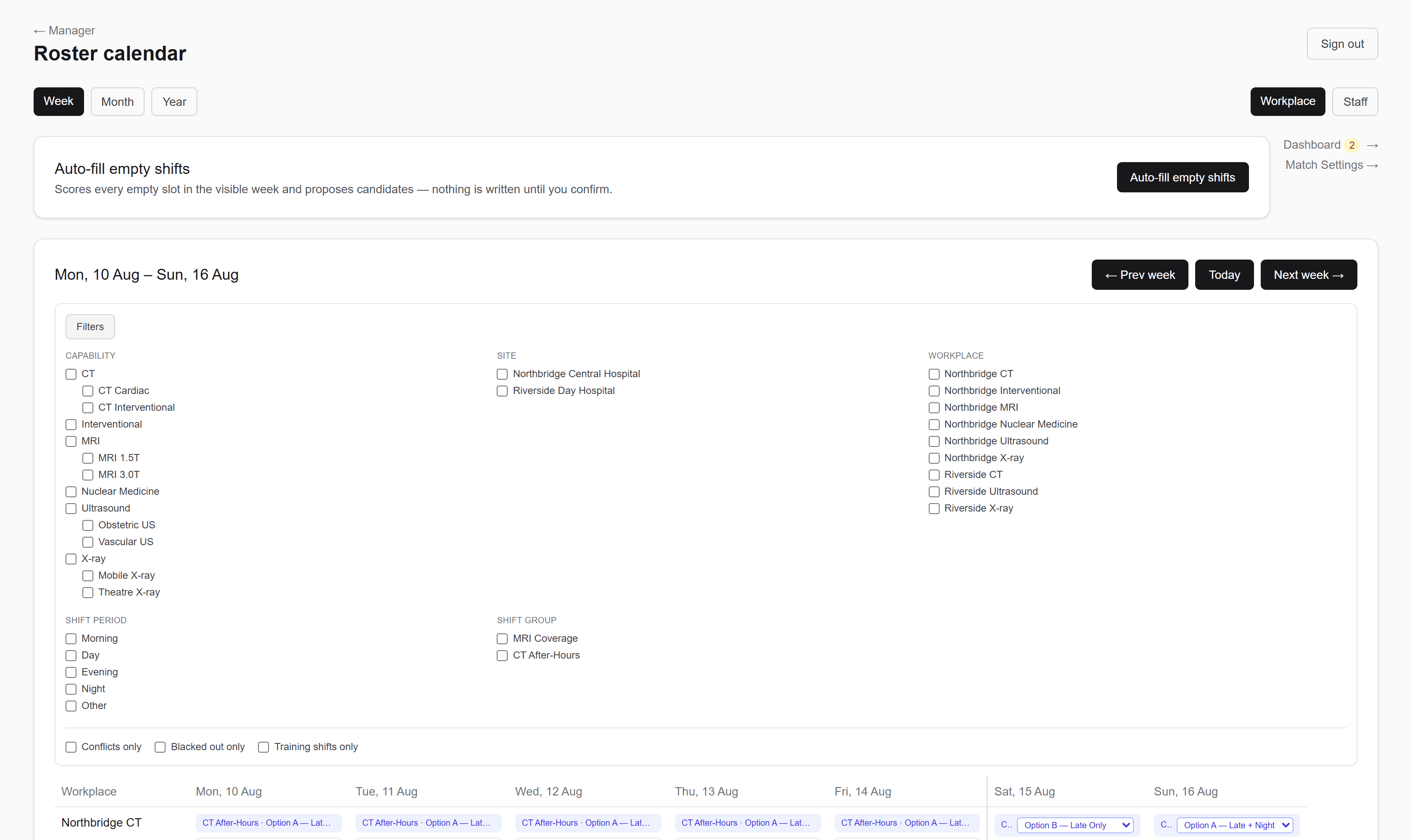
RadCalendar roster calendar showing a week across nine imaging workplaces, with colour-coded shifts, coverage-group options and empty slots offering suggestions.

The week, by workplace. Drag a shift onto someone else and it reassigns.

The roster calendar

The roster calendar (Roster calendar → from the main dashboard) is a grid: rows are workplaces, columns are days. Each cell can hold several shift rows, one per shift type allowed on that day.

Week, Month, Year zoom

The Week / Month / Year tabs at the top switch how much you see at once. In Month view, each day cell shows an "n/m filled" count and is a link — clicking it jumps straight to the Week view for the week that contains that day. In Year view, each month tile shows how many shifts are filled that month overall and links to that month's Month view. Only Week view lets you actually assign, unassign, or drag anything — Month and Year are read-only overviews for navigating.

Month and Year each have a second tab beside the zoom tabs: Roster (the fill counts described above) and Coverage, which instead shows whether each day's remaining seats could actually be staffed — see Coverage view. The "m" in "n/m filled" counts only the shifts genuinely running that day: where a coverage group offers alternatives, just the one option in play is counted, not all of them.

Getting to a particular week

← Prev week / Today / Next week → step a week at a time. The date boxbeside them jumps anywhere in one go: pick any day and you land on the Mon–Sun week containing it — you don't have to pick the Monday yourself, and you no longer have to detour through Month view to reach a week months away. Whatever the week resolves to, the box then shows that week's Monday.

The jump keeps whichever of Workplace or Staff view you were in. The same box sits on the staff-facing roster too.

Reading a shift row

Each shift row shows the shift's name and time range. Once every slot is filled it adds "Full (n/n)" — n filled out of n needed — and stops offering an empty-slot button.

Three other things can appear in a cell, each with its own topic:

  • An indigo coverage-group badge ("MRI Coverage · Option A") naming which alternative staffing plan is active that day, with a dropdown to switch it.
  • A greyed blackout row, showing a shift that's out of service and why.
  • A red ring and ⚠ on an assigned pill, meaning that existing assignment now breaks a rule — see Conflict warnings.

Narrowing what you see

The "Filters" button above the grid collapses the week down by capability, site, workplace, shift period, coverage group, or current state (conflicted / blacked out / training shifts). It never changes the roster itself — see Filtering the roster. The workplace column and Monday–Friday stay pinned in place as you scroll sideways to the weekend.

Assigning someone

  • Click the dashed "+" button on an empty slot to open a quick-assign picker. It defaults to a scored, eligible-candidates-only list with a score badge on each option (see Suggestions & auto-fill). Ticking "Show everyone" drops the scoring and lists every staff member instead — that's how you reach someone the suggestion engine has excluded (marked always-off, fixed elsewhere, opted out of auto-match, no logged availability, below the shift's minimum staff level, or off-pattern). It is not a capability bypass — see below.
  • The "✨ Suggest" button (next to any slot that still has room) opens a ranked shortlist of the top few candidates for that specific slot — pick one to assign directly from the list.
  • If a "↻ name" suggestion chip appears under a shift row, that person has this exact workplace/shift/day set as a Usual Pattern on their staff card — click it to assign them in one step.

Moving and unassigning

Drag any assigned pill to a different shift row, day, or workplace cell to move that person there — the grid updates immediately. Click the × on a pill to unassign that person from that shift entirely.

Double-booking warning

Assigning or moving someone who's already rostered elsewhere that same day shows a warning naming the conflicting shift — "Already assigned to {shift} on {date}. Assign anyway?" — confirming proceeds and creates the double-booking deliberately; cancelling leaves things as they were.

Capability requirements are enforced

A shift type's required capabilities are a hard rule at the moment of assignment. Assigning or dragging someone who doesn't hold one is refused outright— you get "Missing required capability: {name}." and nothing is written. There is no confirm-and-proceed override, and no picker setting that gets around it. To roster that person, either tick the capability on their staff card or drop the requirement from the shift type.

Two things count as holding the capability:

  • A sub-capabilityof the one required — someone cleared for "MSK Ultrasound" satisfies a shift requiring "Ultrasound". See Capabilities.
  • An active training assignmentfor that capability — but only on a shift flagged "Training shift". See Training assignments.

Other write-time refusals

Two more rules are enforced the same way, regardless of what the picker showed you: a shift that already has everyone it needs ("This shift is full (n/n)"), and minimum rest when it's set to Hard in Match Settings. Double-booking is the one genuine override — it warns and lets you confirm.

Dragging a pill can still raise an older "isn't marked as having a required capability — assign anyway?" browser prompt before the move is attempted. That prompt is not an override: confirming it just produces the refusal above. It also doesn't account for sub-capabilities, so it can warn about someone who is in fact qualified through one — that move succeeds, and the amber "despite a capability mismatch" notice that follows it (with its "Update their capabilities →" link) is a false alarm you can dismiss.
If a shift type's Allowed Days get tightened after people are already rostered on a now-excluded day, those entries don't disappear — they show separately under a "Not allowed on this day" heading in that cell so you can see and resolve the mismatch.
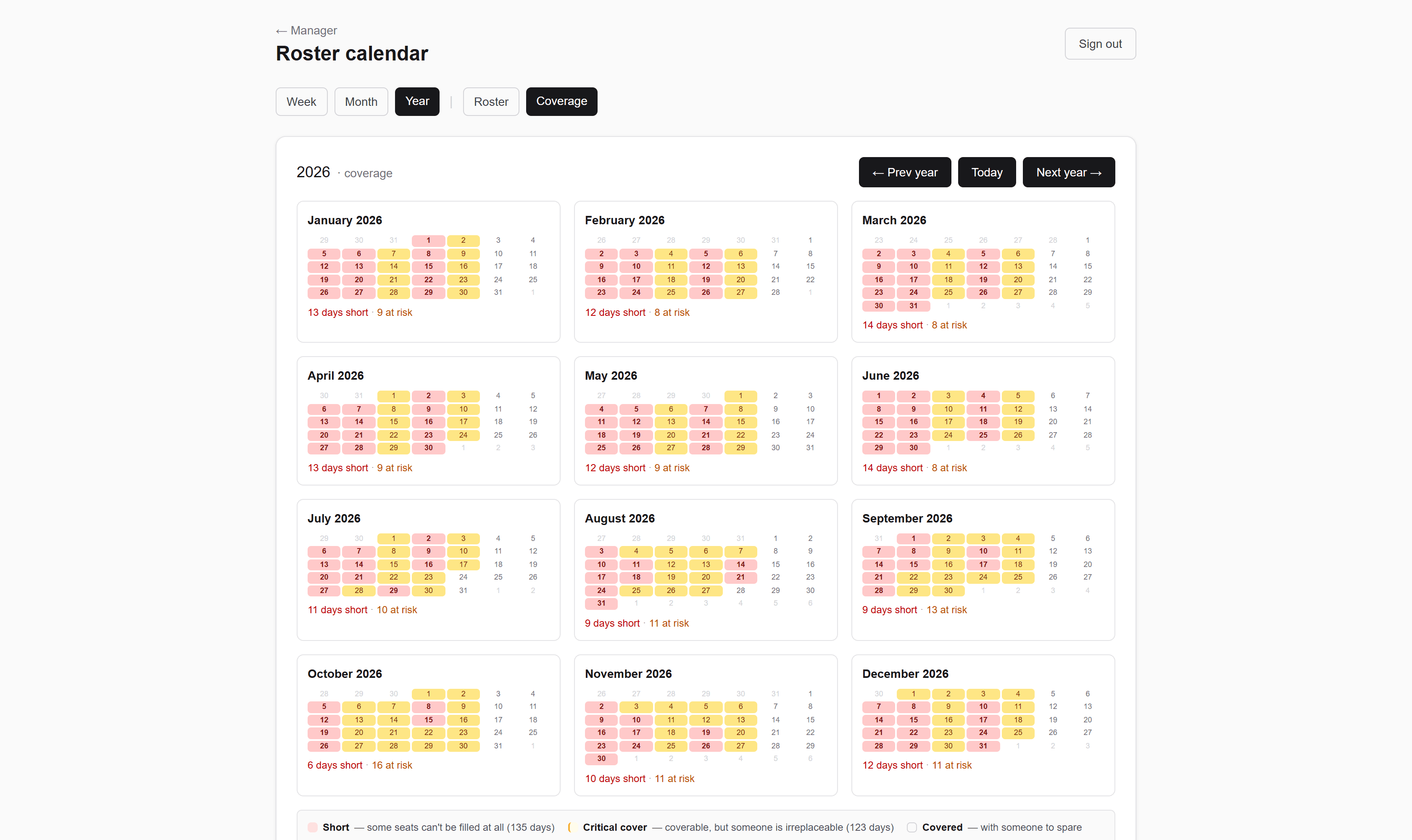
The year coverage view for 2026, twelve months of day tiles shaded by whether each day is covered, at critical cover, or short.

Month and Year each carry a second tab. This is a whole year of coverage at a glance — the quarter you haven't started rostering yet.

Staff view

A second way to look at the same week: the "Staff" tab next to "Workplace" at the top of the roster calendar pivots the grid so staff are the rows and days are the columns, instead of workplaces. Same underlying assignments, same filters, same drag-and-drop — just a different angle for when you're thinking about one person's week rather than one workplace's coverage.

Rows and grouping

Staff are grouped the same way as the Manager page's staff list — by group and subgroup, in the order you've set them there, with an "Ungrouped" section last. A bank or agency staff member gets a small "Bank" or "Agency" badge next to their name. The second line under each name is their home base workplace, purely informational — it doesn't limit which workplaces they can be assigned to here.

Reading a cell

Each cell holds a flat stack of small chips, one per assignment that person has that day — a chip shows the workplace and shift type, colour-coded the same as Workplace view. Someone working two different workplaces the same day just gets two stacked chips in that one cell.

Assigning, moving, unassigning

  • Click the dashed "+" in any cell to assign — since the person is already fixed by the row, this form asks for a workplace, then (once chosen) a shift type at that workplace allowed on that day.
  • Drag a chip to a different day in the samerow to move that assignment's date, keeping the workplace and shift type unchanged.
  • Drag a chip onto a differentperson's row to reassign it to them — the workplace and shift type carry over from the dragged chip, whether the target cell is empty or already has chips of its own. The same double-booking and capability-mismatch checks from Workplace view apply.
  • Click the × on a chip to unassign that person from that shift entirely, same as a pill in Workplace view.

Filters carry over between views

The Filters panel and the week you're viewing are both kept when you switch the Workplace/Staff tab — neither resets. In Staff view the filters never remove a person: every row stays on screen and the assignments that don't match are dimmed. Filtering by a capability shows you where your CT people are relative to everyone else, which is usually the question a staffing view is being asked. See Filtering the roster.

Searching for one person

The search box above the grid narrows the rows to staff whose name matches what you type — matching anywhere in the name, not just the start, and ignoring case. It's the quickest way to get to one person's week when you know who you're looking for, since the Filters panel deliberately has no name dimension of its own.

The search is the only thing that removes a row — the filters dim, the search hides. The two stack without interfering: searching narrows to the people whose name matches, and the filters then dim whichever of their assignments don't qualify. Clearing the search leaves your filters alone, and vice versa. If the search matches nobody you get an explicit line saying so rather than a blank grid, and if the filters match nothing all week you get a line saying that too — otherwise a grid of uniformly faded chips would look like a fault rather than an answer.

Searching only changes which rows you see, never their order — the group and subgroup ordering described above holds exactly as it does unsearched.

Unlike the filters and the week, the search box is notshared with Workplace view and isn't kept in the page address — switching tabs or reloading clears it. It's meant as a quick way to find someone, not as a view setting worth keeping or sharing in a link. The Manager page's staff list has its own separate search, which behaves the same way.

What Staff view doesn't have

This view is for arranging one person's week rather than for filling gaps, so several Workplace-view tools aren't here at all: no "✨ Suggest" button, no score badges, no usual-pattern chips, and no auto-fill. Use Workplace view when you're trying to cover a slot and want the engine's opinion.

The assign form is simpler than Workplace view's in one way worth knowing: it lists every shift type allowed at that workplace on that day, without checking whether the shift is already full or blacked out. Choosing a full one is refused after you click Assign, with "This shift is full (n/n)".

Week view is the only interactive one here too. The Workplace/Staff tab exists only on Week view — zooming out to Month or Year drops you back into the ordinary read-only overview, which has no Staff equivalent, and coming back lands you in Workplace view.
Conflicts surface here the same as in Workplace view — a chip whose assignment currently fails a matching rule gets a red ring and a ⚠, with the reasons on hover. See Conflict warnings.
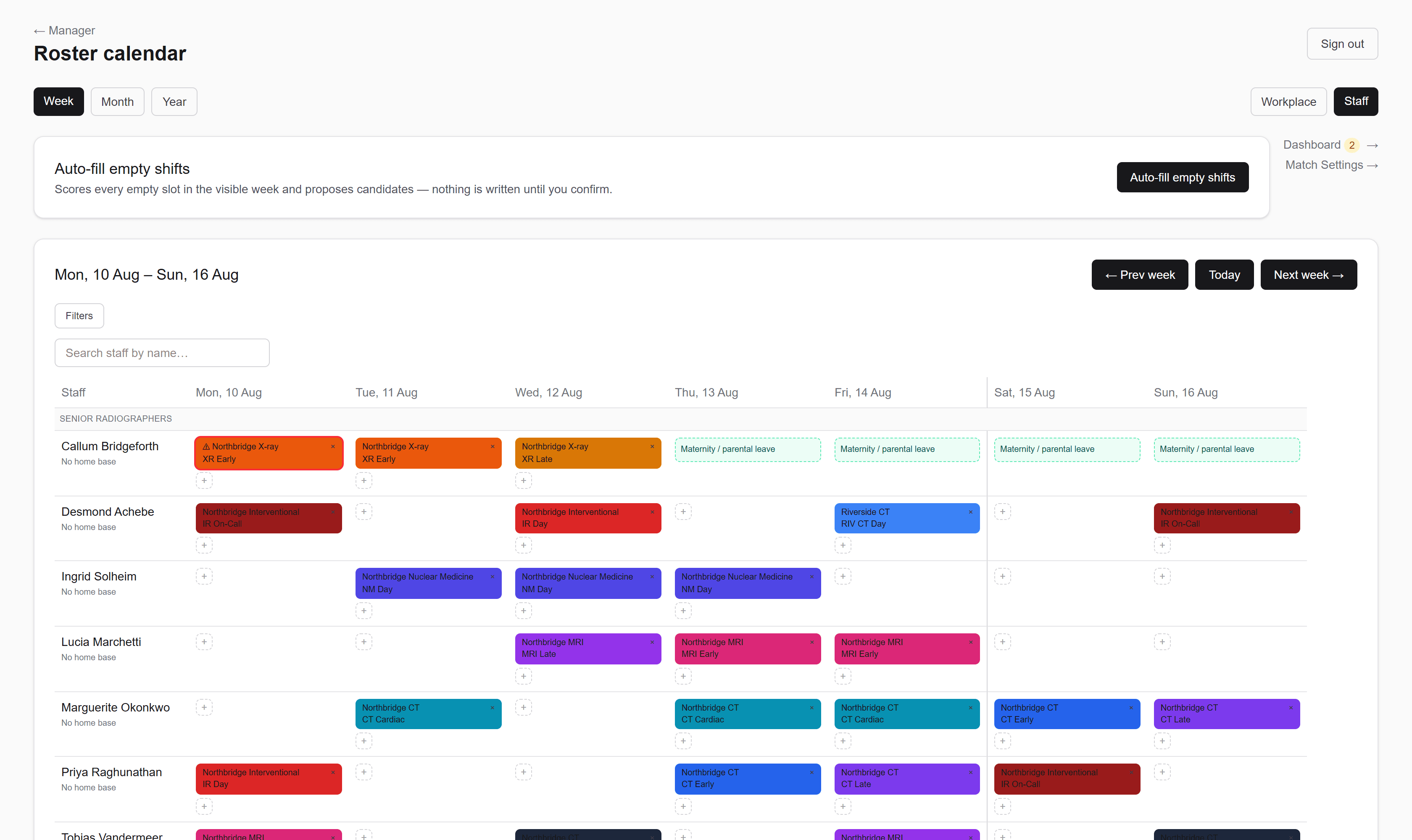
Staff view of the roster: each radiographer is a row grouped by team, with colour-coded shift chips across Monday to Sunday and empty cells where they are rostered off.

The same week, pivoted. Workplace view answers “is CT covered on Thursday?”; Staff view answers “what is Marguerite working?”.

Coverage view

The Month and Year views have a second tab, "Coverage", that answers one question per day: can everything still unfilled actually be staffed by someone who is qualified and free? It looks months ahead, so it's where leave, blackouts and thin capabilities show up before they become this week's problem.

The three states

  • Covered — every remaining seat can be filled, with someone spare.
  • Critical cover (amber) — every seat can still be filled, but at least one person is irreplaceable: if any one of them became unavailable, the day would be short. The number is how many such people there are. These are the days worth looking at before someone calls in sick.
  • Short (red) — some seats cannot be filled at all. The number is how many.

Colour is never the only signal — every day also carries its count, and hovering any cell spells the situation out in a sentence.

What "covered" actually means

It means a legal assignment exists. It does not mean a good one. The check counts a person once, no matter how many capabilities they hold — someone signed off on CT, MRI and X-ray can cover one of three concurrent shifts, not three — and it accounts for capability (including sub-specialties), staff level, approved leave, always-off days, fixed workplace and start time, and bank/agency availability.

It deliberately ignoresminimum rest, night blocks, time-of-day continuity, shift patterns and FTE targets. So a day marked covered might only be coverable by an arrangement you'd never actually make. Treat it as a floor — the day is not impossible — rather than a prediction of what auto-fill will produce.

What it already knows about

  • Seats already filled are taken off the list, and the people filling them are no longer counted as available. So the picture improves as you build the roster.
  • Approved leave removes that person for those dates.
  • Blackouts remove the seats, so a workplace closed for servicing reads as no demand rather than a fortnight of shortfall.
  • Bank and agency staff only count on dates logged on their Availability list. If nobody has logged any, they are invisible here — which will make the picture look thinner than it is.

Coverage groups on days nobody has decided yet

Where a coverage group has several options and no choice has been made for a future date, this view assumes the highest-priority option runs. Auto-fill may later pick a different one after actually comparing them, so the two can disagree on unresolved days. That is deliberate: comparing options properly costs a full scoring pass per option per day, which is not something a twelve-month view can do.

The Roster tab's "n/m filled" counts and this tab now use the same seat model, which is coverage-group and blackout aware. If your "required" totals look lower than you remember, that is why — the old count added up every option of a group as though all of them ran.
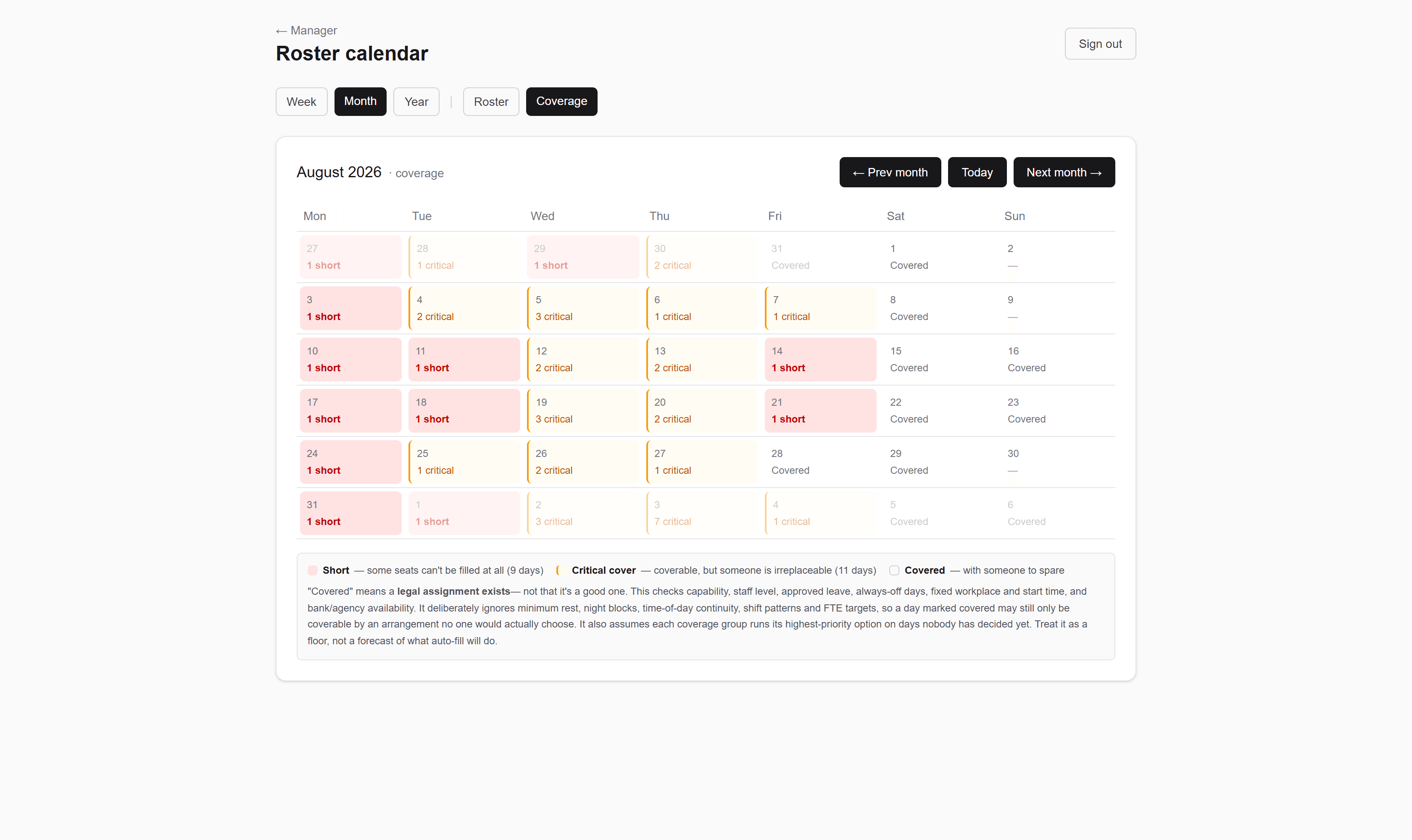
The month coverage view for August 2026, with each day marked Covered, a number of critical-cover people, or short by a number of seats, above a legend explaining the three states.

Months ahead, per day: can everything still unfilled actually be staffed by someone qualified and free? Amber means it can, but only just.

Filtering the roster

The "Filters" button above the roster grid opens a panel of eight dimensions for narrowing what the week shows. It's collapsed by default; once anything is active the button reads "Filters (3)" so you can tell at a glance that what you're looking at isn't the whole picture.

The five value pickers

  • Capability — shown as an indented tree. Ticking a parent also matches its sub-capabilities, so filtering to "Ultrasound" keeps shifts that require "MSK Ultrasound" too. See Capabilities.
  • Site— hides whole workplace rows that aren't filed under a ticked site. A workplace with no site is hidden whenever any site is ticked.
  • Workplace — the same, one workplace at a time.
  • Shift period — Morning / Day / Evening / Night / Other, the setting on each shift type in the Shift Library.
  • Shift group — shift types belonging to a named coverage group. See Coverage groups.

The three state toggles

Below the divider, three checkboxes filter on current state rather than on a shift type's fixed properties:

  • Conflicts only — only shift rows holding an assignment that currently fails a matching rule. See Conflict warnings.
  • Blacked out only — only blacked-out rows. This one wins outright: nothing assignable is shown alongside it, since a blacked-out row has no assignments to compare against anyway. See Shift blackouts.
  • Training shifts only— only shift types flagged "Training shift". See Training assignments.

How they combine

Every active dimension is ANDed — a row has to match all of them, not just one. Ticking several values withinone dimension is an OR (any of the ticked capabilities, any of the ticked sites). "Clear all" in the panel header resets every dimension at once.

Filtering never changes the roster

This is display narrowing only. A shift type you've filtered out of view is still real, still assignable, and still counted — nothing is unassigned, and a filtered-away shift doesn't start showing its existing entries under "Not allowed on this day". Auto-fill also ignores your filters completely: it scores every empty slot in the week regardless of what's currently on screen.

Shared between Workplace and Staff view

The filter panel sits above the grid rather than inside it, so switching the Workplace/Staff tab keeps every active filter. The two views apply them slightly differently, because their rows mean different things:

  • In Workplace view, site and workplace hide whole rows; the rest hide individual shift rows inside a cell.
  • In Staff view, every dimension is judged per assignment and no dimension ever removes a person. Every row stays and the non-matching chips are dimmed. The rule is the same one Workplace view follows — a filter naming the row's own identity hides, anything else narrows what is inside it — and a Staff-view row's identity is the person, which only the name search addresses.
There's no staff-name dimension here — Staff view has its own name search box above the grid for that. See Staff view.
The roster filter bar expanded, showing pickers for site, workplace, capability, shift period and staff member alongside toggles for conflicts, blackouts and training shifts.

Seven dimensions, one disclosure. Filtering never changes the roster itself.

Conflict warnings

The suggestion engine checks its rules when you're choosingsomeone. This checks them again afterwards, on assignments that already exist — so a roster that was fine when it was built doesn't quietly stop being fine when something else changes underneath it.

What you'll see

Any assignment that currently fails a rule gets a red ring and a ⚠ marker on its pill (Workplace view) or chip (Staff view). Hover it to read the reasons — there can be more than one. Nothing is moved, unassigned, or changed for you; it's purely a flag for a human to deal with.

What gets re-checked

  • Missing a required capability.
  • Below the shift's minimum staff level.
  • Marked always-off that day.
  • Fixed to a different workplace that day.
  • Fixed to a different start time that day.
  • Already rostered on another shift that day.
  • Breaks minimum rest — flagged in both soft and hard mode, unlike the suggestion engine where soft mode is only a score penalty.
  • Breaks time-of-day continuity — only when that rule is switched on in Match Settings.
  • Doesn't match this week's shift pattern.
  • Spread across too many modalities or workplaces this window — only when Placement continuity is switched on.
  • Extends a night block too far, or starts one before the cooldown has passed — only when Night blocks is switched on, and only on shifts whose period is Night. Like minimum rest, this is flagged in both soft and hard mode.

Sub-capabilities and active training assignments are honoured here exactly as they are at assign time, so a trainee legitimately rostered onto a training shift doesn't read as a false capability conflict.

Everything on this list is advisory. Setting a rule to Hard changes who the suggestion engine will offer you; it makes no difference here. An existing assignment is flagged either way, and is never moved or removed for you.

What it deliberately doesn't check

Blackouts, the per-staff auto-match opt-out, and bank/agency availability are not re-checked. Those govern who gets offereda slot, not whether an existing assignment is wrong — a manager who deliberately rostered someone outside their logged availability shouldn't be nagged about it every week.

Finding them

Tick Conflicts only in the Filters panel to reduce the week to just the conflicted rows — the practical way to work through them after changing a capability, a constraint, or a Match Settings rule. See Filtering the roster.

Conflicts are recalculated fresh on every page load of the week you're looking at — there's nothing stored and nothing to clear. Fix the underlying cause (tick the capability, move the shift, change the rule) and the marker is simply gone next time the page renders. Because it only ever covers the visible week, a conflict in a week you're not looking at won't announce itself.

Roster notes

Short free-text notes pinned to a day on the roster grid — the things that aren't an assignment but change how the day runs. "MRI 3 down until lunchtime", "covering reception till 2". Available in both roster views, on any cell.

Two anchors, and the difference matters

A note is attached either to a workplace and a date, or to a person and a date. Which one you get depends on the cell you add it from, and they behave differently:

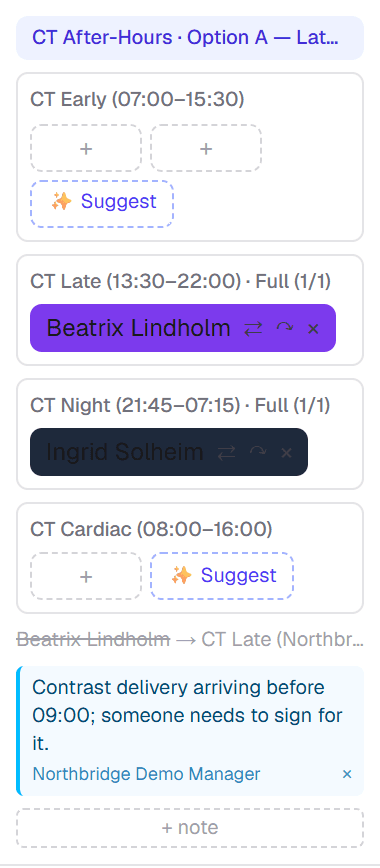
  • Workplace notes stay with the room. Added from a Workplace-view cell, they describe the place on that day — equipment down, a delivery arriving, a list running late.
  • Person notes travel with the human. Added from a Staff-view cell, they follow that person wherever their shifts move, and they also reach them on their own staff page. Use these for anything about the individual rather than the location.

A thread, not one note per cell

Notes append rather than overwrite. A single cell can accumulate several unrelated facts on one day from different people, each stamped with its own author, newest last. Delete individual notes when they stop being true. This is deliberately unlike the standing description on a staff card, which is one evolving note about a person rather than a dated thread.

Notes are capped at 500 characters — the same limit leave requests use. They are meant to be read at a glance inside a dense grid cell, so the closed state is a single muted line.

Who can see them

Everyone in the organisation. Staff see roster notes for the week on their own page, the same way they see the roster itself. Notes are not private working memory — write them as though the person they concern will read them, because they can.

One note is written for you: when you move someone to another shift and give a reason, that reason is stored as a person-anchored note on the day they moved. See Moves and handovers. It is an ordinary note afterwards and can be edited away like any other, so deleting it removes the only record of why the move happened.
A single roster cell for Northbridge CT, showing its shift rows above a blue note reading 'Contrast delivery arriving before 09:00; someone needs to sign for it.' attributed to the Northbridge Demo Manager, with an add-note control beneath.

Notes sit under the assignments in the cell they belong to, each stamped with its author. Staff see them too.

Moves and handovers

Taking someone off a shift keeps a record of it. Every assignment chip carries two controls: hands the seat to someone else, and sends this person somewhere else. They answer different questions, and one event can be both.

Replace: someone else takes this seat

The outgoing person comes off, the incoming person goes on, and the two are linked. Every check a fresh assignment would face is run against the incoming person — capability, capacity, minimum rest, double-booking — so a handover can't slip through a gate a normal assign would fail.

Move: this person goes elsewhere

Pick a destination workplace, shift type and date. The date defaults to the one they are on and is editable, so the same control covers "moved sites at 11am" and "shifted to Thursday".

Dragging a chip onto another cell performs the same move. The form exists because the two gestures aren't interchangeable: a drag is a planning motion with nowhere to explain itself, while a real mid-shift move is an operational record whose reason is most of its value. That reason is the only thing the form adds — it becomes a person-anchored roster note on the day they moved, which also reaches them on their own staff page.

What the struck-through chips mean

A superseded assignment stays in the cell, greyed and struck through, with a suffix saying where it went:

  • Sam → Priya — someone else took this seat.
  • Sam → Ultrasound (Riverside) — Sam went to another shift. The move names the destination shift and its site, not a person, because that is the question a move raises.
  • Sam → Priya, to Ultrasound — both at once: a cross-site swap.
  • Sam · removed — neither. A plain unassign: leave approved, shift dropped, no successor.

Hovering a chip gives the same thing as a full sentence.

Removing is not deleting

Taking someone off a shift used to destroy the fact they were ever on it. It now marks the assignment superseded and leaves the row in place. The seat frees up exactly as before — every coverage count, capacity check and conflict check ignores superseded rows — but the history survives, and the roster can answer "who was on this originally, and what happened" weeks later.

Dragging is the fast path and writes no reason at all, so a week full of drags leaves accurate chains with nothing explaining them. If a move is something you might be asked about later — a mid-shift reassignment, a cross-site pull — use and type the reason. It costs a sentence now and is the only part that can't be reconstructed afterwards.
One person's week in Staff view. Wednesday shows a struck-through chip reading 'Beatrix Lindholm → CT Late', the new CT Late assignment above it, and a note giving the reason for the move.

A move leaves the original in place, struck through and pointing at where it went — with the reason recorded beside it.

Matching engine

Auto-fill proposes. You stay in charge.

The scoring engine weighs capability, recent load, fatigue rules, minimum shifts and FTE targets — then hands you a reviewable list rather than a fait accompli.

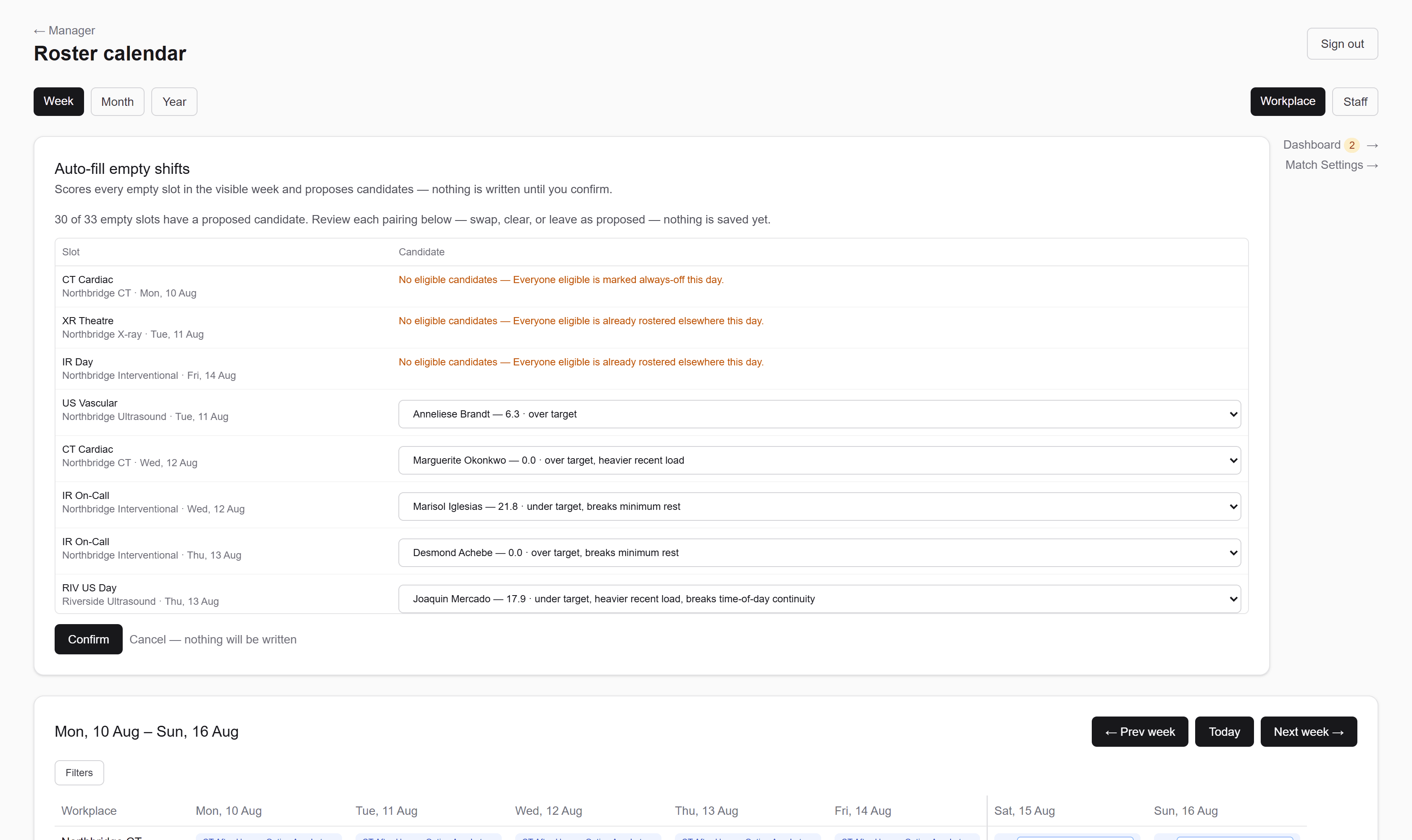
The auto-fill panel listing each empty slot beside its proposed candidate, with a score and the reasoning for each pairing, above Confirm and Cancel actions.

Nothing is written until you confirm it.

Suggestions & auto-fill

One scoring engine feeds three surfaces: the quick-assign picker's dropdown, the per-slot "✨ Suggest" shortlist, and the batch "Auto-fill empty shifts" tool — so a badge means the same thing wherever you see it.

Reading a score badge

A badge is a number from 0–100 (higher is a better match), optionally followed by one or more short tags, e.g. 92 · under target, top-ranked skill. The tags you'll see:

  • top-ranked skill — this shift requires a capability the candidate has ranked #1 in their own priority ranking.
  • under target / over target — compares how much they already have this period against their FTE target on the staff card.
  • lighter recent load / heavier recent load— compares how many shifts they've actually worked in the last 14 days against the organisation's average, regardless of whether they have an FTE target set — a fairness tiebreaker.
  • clashes with X / preferred alongside X— someone else already rostered on the same shift is marked as a Clash or Preference on either person's staff card.
  • agency — last resort / bank — last resort— this candidate's Employment type (staff card) is Agency or Bank. They're still scored and shown, but always ranked below every permanent candidate regardless of score — genuinely last resort, not just a score penalty that a strong enough match could overcome.
  • in training for this capability— only ever appears on a "Training shift." This candidate doesn't hold the required capability yet, but has an active training assignment for it — see Training assignments.
  • breaks minimum rest — this candidate would have less than the required gap from a shift on the day either side. Only ever a tag in softmode; in hard mode they're excluded from the list instead. See Match Settings.
  • breaks time-of-day continuity — taking this shift would switch them between shift periods more times than allowed within the trailing window. Always a tag, never an exclusion — this rule has no hard mode. See Match Settings.
  • spreads across 3 modalities / spreads across 3 workplaces— counting this shift, they'd be working in more different places within the window than Placement continuity allows. Always a tag, never an exclusion — this rule has no hard mode either.
  • extends night block to 5 / still in night cooldown — this night shift would run their block past the maximum, or start a new block before the cooldown has passed. Only ever a tag in softmode; in hard mode they're excluded from the list instead.

Candidates who are entirely excluded don't appear in the list at all — only eligible candidates get scored and shown. Reasons a candidate is excluded outright (not just scored lower):

  • Missing a required capability (and not covered by an active training assignment on a training shift — see Training assignments).
  • Marked always-off that day, fixed to a different workplace that day, or fixed to a different start time that day (Fixed day constraints, staff card).
  • Already double-booked elsewhere that day.
  • Below the shift's "Minimum staff level" (Shift Library) — an unset Staff level never counts as meeting a level requirement.
  • Bank/agency staff with no logged Availability covering that exact date.
  • Opted out via "Include in auto-match suggestions" (staff card, Auto-match section) — they can still be assigned manually at any time, just never suggested.
  • Would have insufficient rest around this shift — only when minimum rest is set to Hard in Match Settings. On Soft they stay in the list with a penalty and a tag instead.
  • Has a configured Shift pattern that doesn't call for this shift this week (staff card).
  • Would run past the maximum consecutive nights, or start a night block before the cooldown has passed — only when Night blocks is set to Hard in Match Settings, and only on Night shifts. On Soft they stay in the list with a penalty and a tag instead.
Being excluded from suggestions is not the same as being blocked from assignment. Of the reasons above, only the missing capability and hard-mode minimum rest are actually refused if a manager assigns someone directly. Everything else — including hard-mode night blocks — is reachable via "Show everyone" in the picker: it removes someone from suggestions, but won't stop you rostering them by hand. See The roster calendar.

Per-slot "Suggest"

Click "✨ Suggest" next to any open slot to see a ranked shortlist (top 5) of eligible candidates with their score badges — pick one to assign directly. If nobody's eligible, it tells you why (e.g. "No one has the required capability").

When several things rule people out at once, the message names the constraint that stopped the people who got furthest— the one actually worth acting on. If most of the team simply lacks the capability but the two who have it are both already rostered elsewhere, you're told about the double-booking, not the capability.

Auto-fill empty shifts

The "Auto-fill empty shifts" button above the week grid scores every empty slot in the visible weekat once and proposes a candidate for each — nothing is written yet. You get a preview table with one row per empty slot; each row has a dropdown to swap the proposed candidate for an alternative, or choose "— Leave empty —". Nothing is saved until you click Confirm— "Cancel" discards the whole preview and writes nothing. After confirming, you'll see how many shifts were actually filled and, for any left empty, the reason (e.g. no eligible candidate for that slot).

Slots fill most-constrained-first (fewest eligible candidates get proposed first), with one deliberate exception: every "Training shift" slot is proposed last, after every non-training slot in the visible week — regardless of how few candidates the training slot has. This is how training shifts end up only getting offered once the team is otherwise covered, without needing a live "are we well-staffed right now" check. See Training assignments for the full picture.

Auto-fill is entirely opt-in and reviewable — it never runs silently in the background, and every proposed pairing can be changed or cleared before you confirm anything.
The roster calendar with a suggestion panel open on an empty slot, listing candidate radiographers each with a score and the reasoning behind it.

Every proposal comes with its reasoning — under target, heavier recent load, last-resort agency cover.

Match Settings

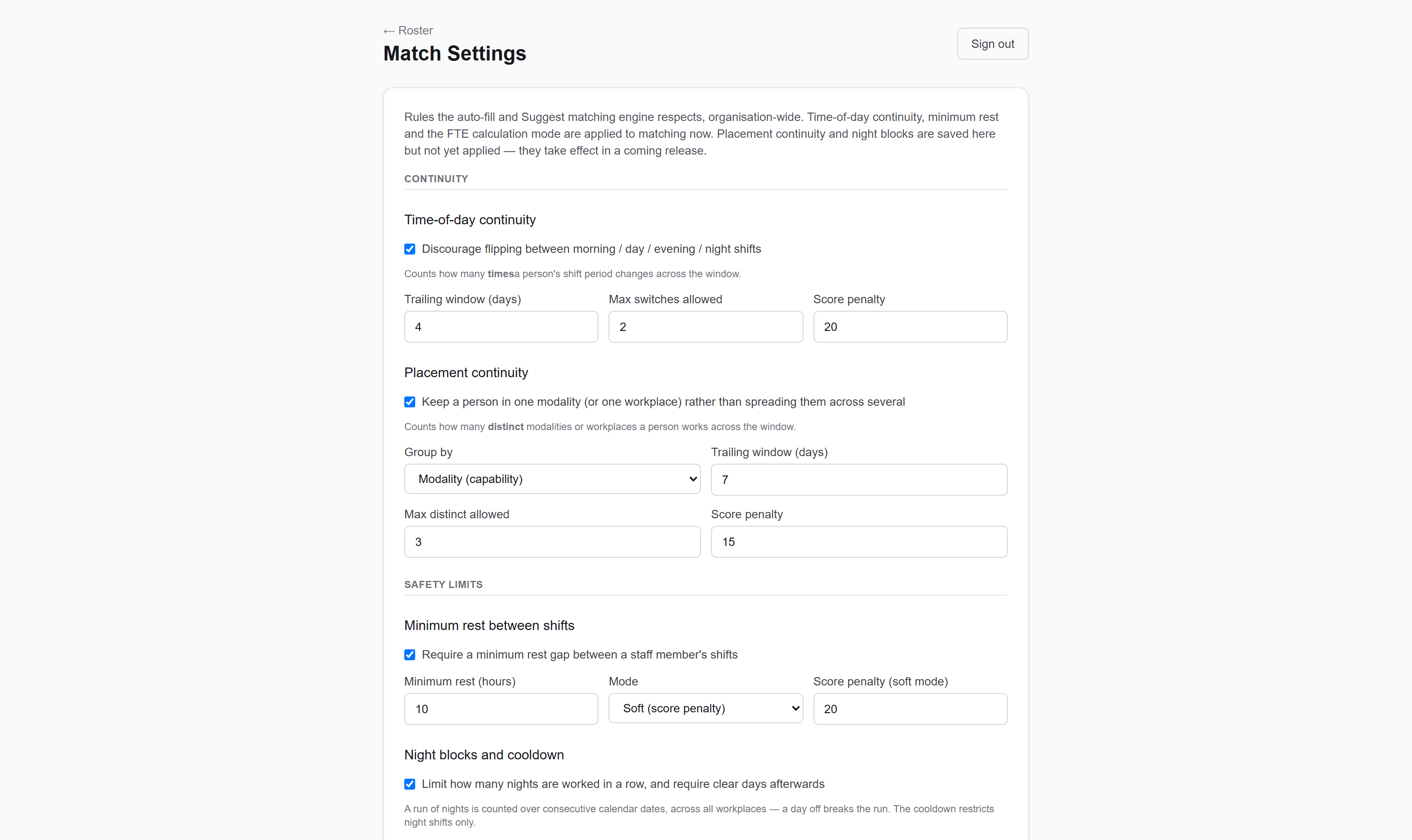
"Match Settings →" on the roster calendar opens five organisation-wide rules that shape how the suggestion engine scores and excludes candidates. These are set once for the whole organisation, not per person and not per shift — everything on a staff card is layered on top of what you choose here. Every field autosaves as you change it.

The panel groups them under three headings. Continuity holds the two rules about keeping someone settled — one about when they work, one about where. Safety limits holds the two about rest and fatigue. Workload holds the FTE calculation mode. The two Continuity rules are easy to confuse, so the short version: time-of-day continuity counts how many times someone changes; placement continuity counts how many different places they end up in.

Time-of-day continuity

Off by default. Ticking "Discourage flipping between morning / day / evening / night shifts" penalises candidates who would be bounced between shift periods — the Morning / Day / Evening / Night / Other setting on each shift type — too often in a row.

  • Trailing window (days) — how far back to look at what this person has already worked. Their shifts in that window, plus the slot being scored, form the sequence being judged.
  • Max switches allowed — how many times that sequence may change period before the rule bites. A day → night → day run is two switches; with the max set to 1, that candidate is penalised.
  • Score penalty — how many points to subtract when it does. The candidate also picks up a breaks time-of-day continuity tag on their badge.

This rule is always soft — there is no hard mode. It can only ever push someone down the ranking; it never removes them from the list and never blocks an assignment.

Placement continuity

Off by default. Where the rule above is about when someone works, this one is about where: it discourages spreading a person across several modalities — or several physical workplaces — within the same window.

  • Group byModality (capability) groups by the top-level capability a shift requires, so MRI 3.0T and MRI 1.5T both count as plain MRI. Physical workplace groups by the workplace the shift belongs to instead. The two answer genuinely different questions: someone who worked only CT, but at both Northbridge and Riverside, is settled by modality and spread by workplace.
  • Trailing window (days) — how far back to look. Their shifts in that window, plus the slot being scored, are what get counted.
  • Max distinct allowed — how many different modalities (or workplaces) are tolerated before the rule bites. Set to 1, someone who worked only CT all week is fine, and someone who worked CT, MRI and Ultrasound is penalised.
  • Score penalty — points subtracted when it does. The tag reads spreads across 3 modalities (or workplaces). It's a flat penalty applied once — being spread across four places doesn't cost more than three.

This rule counts distinct places, not changes. CT → MRI → CT and CT → MRI → Ultrasound are both two changes, but two distinct modalities versus three — only this rule tells them apart, which is why it sits alongside time-of-day continuity rather than replacing it.

Like the rule above it is always soft: there is no hard mode in the panel. Being spread across three modalities is a preference, not a safety limit, and a hard version would strand slots unfillable for reasons that would look arbitrary.

A shift that requires no capability at all doesn't count towards the total — an unrequired shift shouldn't manufacture a spread. A shift requiring capabilities from two different families counts towards both, because it genuinely places the person in both.

Minimum rest between shifts

Off by default. When on, it checks the gap between the end of one shift and the start of the next, looking only at the calendar day either side of the slot being scored.

  • Minimum rest (hours) — the gap to require, in half-hour steps.
  • Mode — the important one. Soft (score penalty) keeps the candidate in the list with a breaks minimum rest tag and the penalty below applied. Hard (exclude candidate) removes them from suggestions altogether andrefuses the assignment at write time — a manager can't push a rest-violating assignment through manually the way they can a double-booking.
  • Score penalty (soft mode) — points subtracted in soft mode. Ignored in hard mode, where the candidate is gone rather than scored.
Minimum rest on Hard is the only setting on this page that changes what a manager is allowed to do, rather than just who gets suggested. Switching it to Hard will start rejecting manual assignments that were previously merely discouraged — including drag-and-drop moves onto an adjacent day. The night-block rule below also has a Hard mode, but it only removes people from suggestions; it never refuses a manual assignment.

Night blocks and cooldown

Off by default. Nights tend to be worked in blocks: you don't want someone strung out over too many in a row, and you want them to get a clear stretch afterwards before the next block starts. This rule enforces both, and only ever applies to shifts whose period is Night.

  • Max consecutive nights — the longest run allowed. A run is counted over consecutive calendar dates, so a single day off breaks it. It also counts nights already rostered after the slot, not just before — dropping someone into the middle of a gap between two short runs joins them into one long one, and the rule sees that.
  • Cooldown after a block (days) — how many clear days must pass after a block ends before a new one may start. Measured from the start of the block being joined, not from the individual shift.
  • ModeSoft keeps the candidate in the list with the penalty and a tag reading extends night block to 5 or still in night cooldown. Hard removes them from suggestions entirely.
  • Score penalty (soft mode) — points subtracted in soft mode. Ignored in hard mode.

Nights at different workplaces still count as one run. The constraint is human fatigue, not location — which is the opposite of how placement continuity treats workplaces, deliberately.

The cooldown restricts night shifts only. Somebody part-way through their recovery days can still be suggested for a day shift; minimum rest already governs the immediate turnaround off a night.

FTE calculation mode

Decides what "target" means everywhere — which field appears on each staff card, what the under target/over target badge tags compare, and which figures the FTE/Hours Dashboard reports.

  • Fortnightly shift count(the default) — counts rostered shifts in the current fortnight against "Target shifts per fortnight" on the staff card.
  • Hours-based cycle average— totals rostered hours against "Target hours per cycle" instead, measured over each staff member's own rostering cycle(Weekly / Fortnightly / 4-weekly, set in their Fixed day constraints — see Cycle constraints). Two people on different cycle lengths are therefore judged over different windows.

Switching mode doesn't convert anyone's existing target — the two targets are separate fields and both are kept. Someone who only ever had a fortnightly shift target set will show as having no target at all until an hours target is filled in for them, and vice versa.

A staff member's "Minimum shifts" floor is notaffected by any of this — it's always counted in shifts, always over that person's own chosen period, and never enforced. See FTE / Hours Dashboard.

See Suggestions & auto-fill for how these rules combine with everything else into a single score.

The Match Settings panel showing continuity, safety-limit and workload rules, each with its own window, threshold, mode and score penalty.

Five organisation-wide rules. Only minimum rest on Hard changes what a manager is allowed to do; the rest shape who gets suggested.

Cycle constraints

Lives inside the Fixed day constraints section of a person's Rostering tab — for staff whose availability follows a longer repeating pattern than a single week.

Rostering cycle

A dropdown offering Weekly (the default — every day rule applies every week), Fortnightly, or 4-weekly. Choosing anything other than Weekly reveals a required "Cycle start date (Week 1 begins)" field — this is the real calendar date that anchors what "Week 1" means for this specific person.

"Which week" per day rule

Once a cycle length and start date are set, every day-of-week row gets an extra dropdown: "Every week" (the rule always applies, same as before) or a specific week ("Week 1 (4 Aug – 10 Aug)", "Week 2 (11 Aug – 17 Aug)", etc. — each option shows the real date range it currently covers). A helper line under the cycle picker also shows which week today falls into, so you can sanity-check the setup.

It also defines the FTE window

The cycle isn't only about day rules. If your organisation's FTE calculation mode is set to "Hours-based cycle average", this same cycle length is the window each person's rostered hours are totalled over and compared against their "Target hours per cycle". Someone on a 4-weekly cycle is judged over four weeks; a colleague on Weekly is judged over one. Changing a person's cycle length therefore changes what their hours target means, not just when their day rules apply. See Match Settings.

When to use this

Use it for someone whose Monday, say, is only ever off in the second week of a fortnight, or who's fixed to a different workplace only in week 3 of a 4-week rotation — anything a single set of "every week" day rules can't express on its own.

Shrinking the cycle length (e.g. 4-weekly down to Fortnightly) can orphan existing rules pinned to a week number that no longer exists — you'll get a warning naming the affected days before it happens, and confirming clears just the "which week" setting on those rules back to "every week" rather than deleting the rule outright.

Oversight

Catch the problems before the fortnight starts.

Hours against target, people below their minimum, leave waiting on a decision, and who is quietly carrying too much.

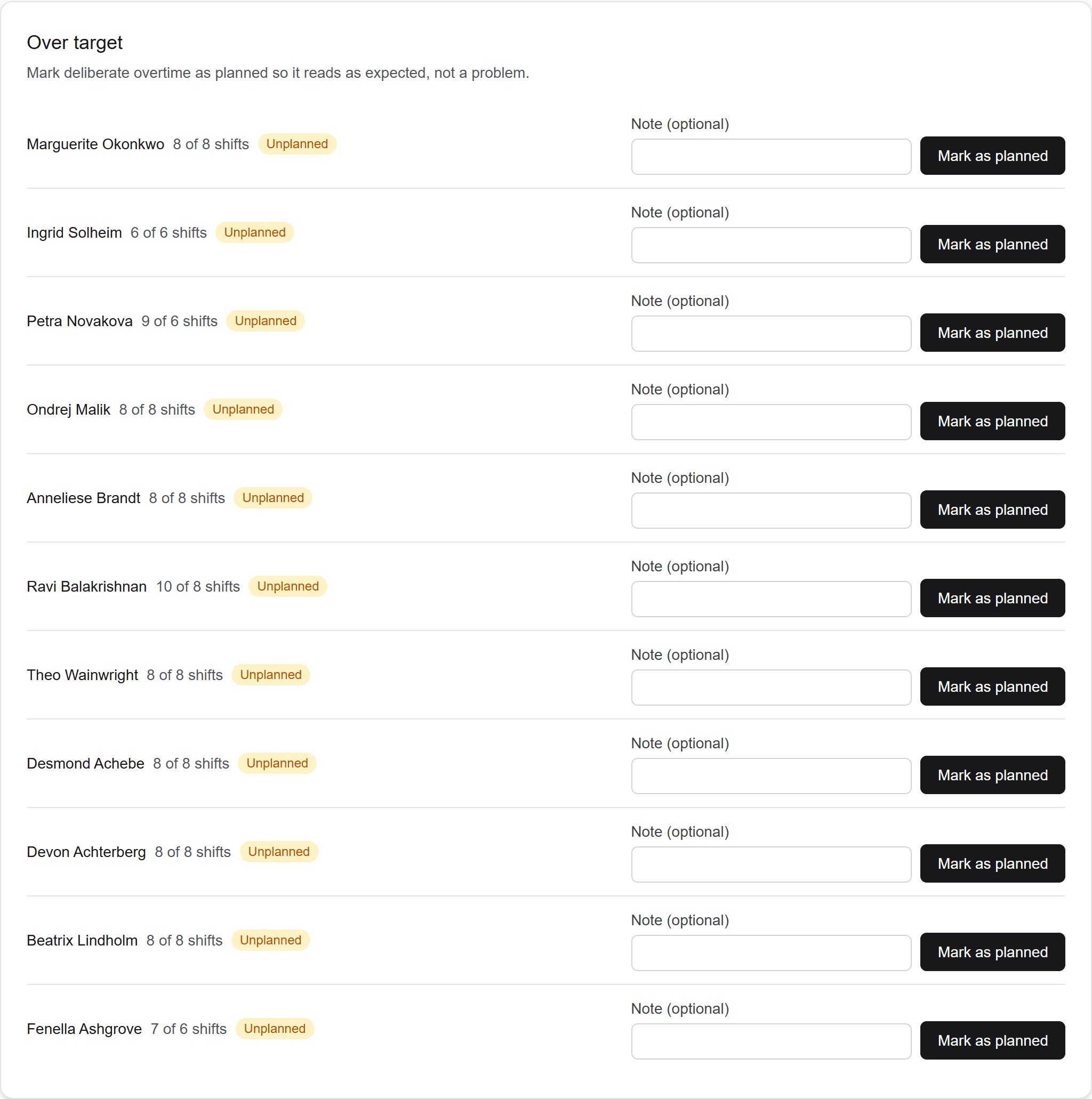
FTE and hours dashboard listing staff who are unrostered, under target and over target for the current fortnight, with controls to mark overtime as planned.

Every staff member's hours and shifts against their own target and cycle.

Training assignments

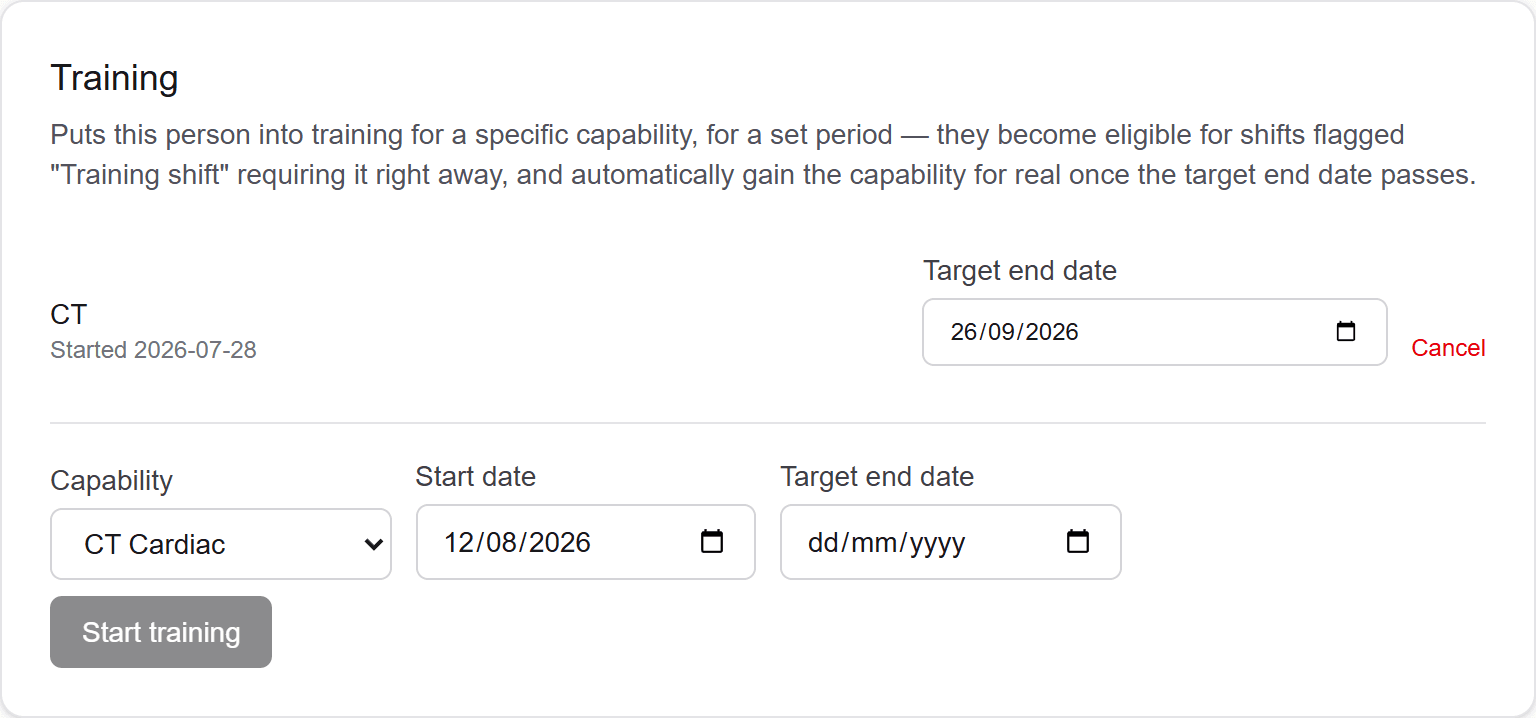
Puts a specific person into timed training for a specific capability — "Josh is doing MRI training until 1 September" — rather than just tagging a shift "training" in the abstract. Lives in the Training section of a person's Rostering tab, near Capabilities. Only managers start, adjust, or cancel a training assignment — there's no self-service for staff.

Starting one

Pick a capability (only capabilities this person doesn't already hold, and isn't already actively training in, appear in the list), a start date (defaults to today), and a target end date, then click "Start training" — a deliberate button, not autosave, since starting is a real state change. A person can only have one active training assignment per capability at a time; to change what they're training in, cancel the old one first and start a fresh one for the new capability.

What it does while active

A person with an active training assignment for capability X becomes eligible for shifts flagged "Training shift" (Shift Library) that require capability X — shown in Suggest/the picker with an "in training for this capability" tag — even though they don't hold X yet on their Capabilities list. This is narrow and doesn't leak anywhere else:

  • It onlyapplies to shifts explicitly flagged "Training shift." The same person is still excluded from an ordinary (non-training) shift requiring that same capability until it's actually granted.
  • It does notbypass a shift's "Minimum staff level" — that's a separate, independent gate. Being in training for the right capability doesn't help if the shift also requires a staff level this person doesn't have set.

Auto-completion — becoming competent for real

There's no scheduled job checking dates in the background — instead, whenever this person's staff card is opened, or whenever the suggestion engine runs a scoring pass anywhere in the app, any of their training assignments whose target end date has already passed are completed on the spot: the capability is ticked for real on their Capabilities list, and the assignment moves to a "completed" history line. In practice this means it can take until the next relevant page load or suggestion request for a just-elapsed assignment to flip — not an exact-to-the-second background process, but close enough that it's never stale for more than a normal working session.

Once completed, the person is a completely ordinary, fully qualified candidate for that capability — for training shifts and ordinary shifts alike, with no more special-casing.

Extending or shortening

The target end date on an active assignment autosaves, same as every other date field in this app — just edit it directly. Push it further out to extend the training period (it won't complete early just because the original date has passed if you've already moved the goalpost), or pull it into the past to force it to complete on the next trigger, same mechanism as a natural expiry.

Cancelling

"Cancel" on an active assignment is a deliberate button, not autosave. It marks the assignment cancelled and does notgrant the capability — use this when training didn't work out, rather than just letting the date lapse.

History

Completed and cancelled assignments both stay visible under "History" on the staff card — capability, start/end dates, and whether it finished by completing or was cancelled. This doubles as a lightweight audit trail of how someone came to be marked competent in a capability, not just a tick with no context.

"Only offer training when the team is otherwise well-staffed" is handled by fill order, not a live staffing check: in the "Auto-fill empty shifts" batch, every non-training empty slot for the visible week is proposed first — training shifts are always proposed last, after everything else has already been resolved, regardless of how few candidates a training slot happens to have. This is why a trainee who could also fill a real (non-training) gap that day tends to get used there first, leaving the training shift unfilled rather than the other way around.
The training section of a staff card showing an active CT training assignment with a target end date, above a form to start a new one.

An active training assignment makes someone eligible for training-flagged shifts in a capability they don't hold yet, and grants it for real when the target date passes.

FTE / Hours Dashboard

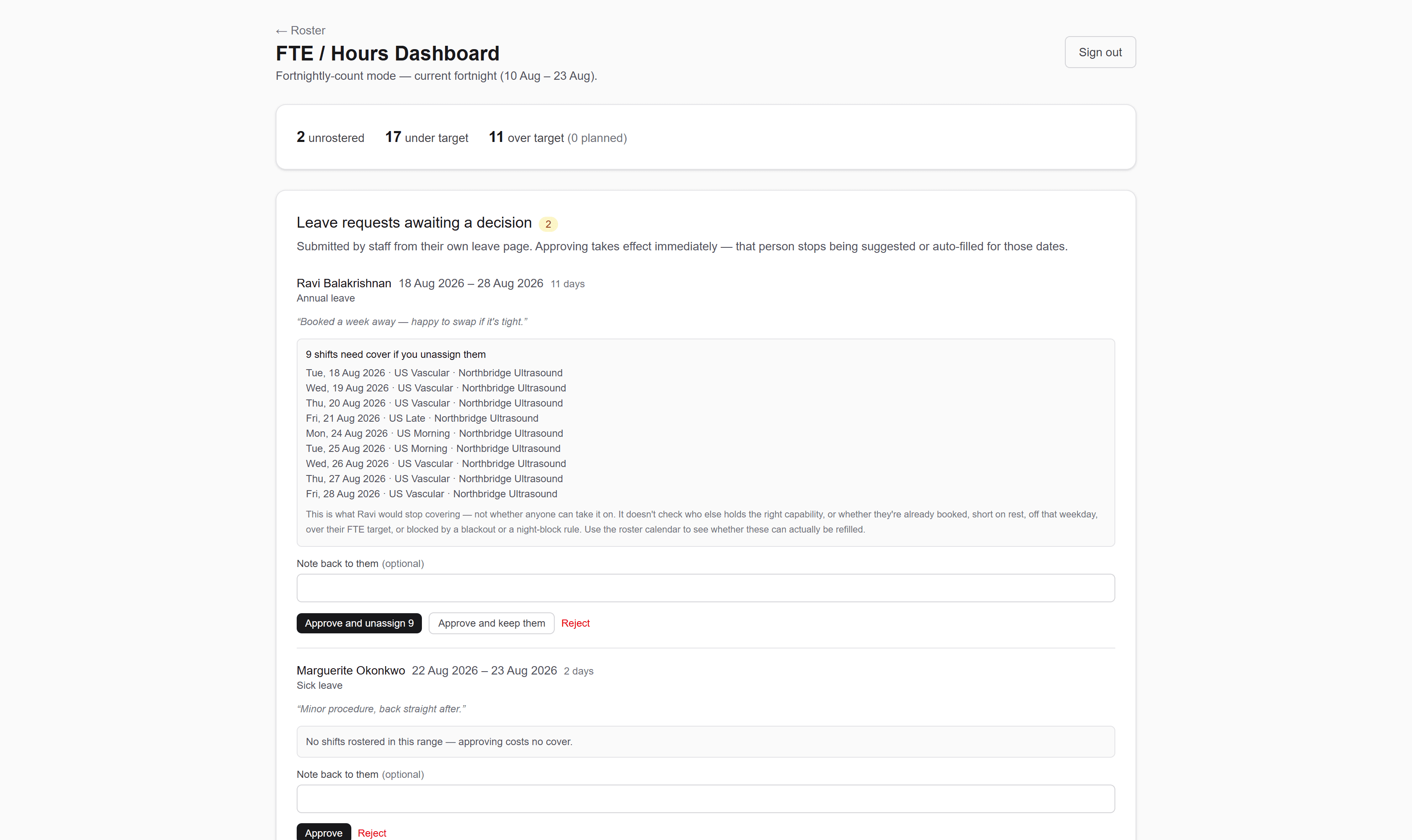
"Dashboard →" on the roster calendar opens the FTE/Hours Dashboard — a per-staff summary of who's unrostered, under target, or over target for the current period, plus a full breakdown table for everyone.

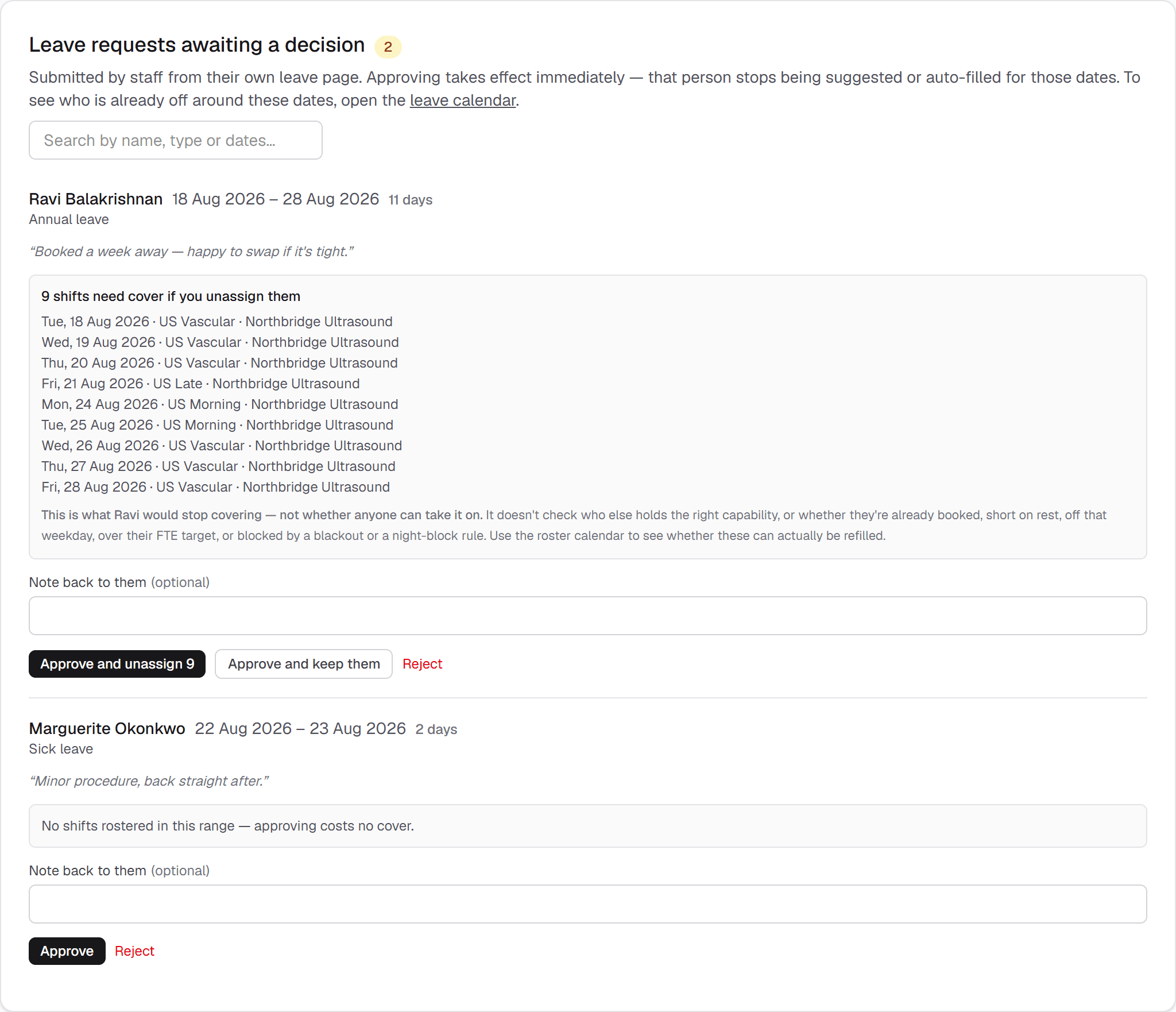
Leave requests come first

If anyone has asked for leave, their requests sit at the top of this page, above everything else — with the shifts they're already rostered on in that range, and Approve / Reject controls. That's the whole discovery mechanism, since nothing is emailed; a count also appears next to "Dashboard" on the roster calendar. See Leave and absence for how approving works.

The lists

  • Unrostered — nobody scheduled at all this period. Staff with approved leave covering any part of the period are excluded from this list automatically; you can also record a leave block for someone directly from here.
  • On leave — approved leave covers this person's entireperiod, so they aren't measured against a target at all. Without this they'd sit in "Under target" every period for the length of the leave, which for parental leave means months of noise. Partial leave doesn't land here — that still counts normally, with a note on the row saying why the numbers are low.
  • Under target / Over target— compares actual hours or shifts against each person's FTE target from their staff card. Which of the two, and over what window, is set by your organisation's FTE calculation mode — see Match Settings. Over-target rows can be marked "Planned" with an optional note, so deliberate overtime reads as expected rather than a problem to chase up.

Below minimum

Separately from the under/over-target lists, anyone with a "Minimum shifts" floor set on their staff card (next to FTE target) shows a red "Below minimum" badge in the full breakdown table if their actual shift count in their own chosen period— Week, Fortnight, or 4 weeks, whichever they're set to — falls short. This is checked against that person's own period, not necessarily the same window the rest of the dashboard is showing (which follows your organisation's overall FTE mode) — so a weekly minimum is always checked against the current week specifically, even while the dashboard itself is displaying fortnightly figures for everyone else. It's purely a warning badge — never enforced by suggestions or auto-fill.

The summary strip

A counter row at the top of the page totals each list — unrostered, under target, over target (with how many of those are marked planned), and, when there are any, how many people are below their minimum shifts or on leave for the whole period. The subtitle under the page title tells you which window everything is being measured over, since that follows your organisation's FTE calculation mode.

"No target set"

Anyone rostered this period who has no FTE target on their staff card gets a grey No target setbadge in the breakdown table rather than being called under or over. That's a deliberate opt-out, not a problem — but it's also what you'll see for everyone whose target was filled in for the other FTE mode, so a sudden crop of them usually means the mode was switched rather than that targets were deleted.

The full breakdown table at the bottom lists every staff member regardless of status, with hours worked, hours target, shifts worked, shifts target, days worked, and a status badge — useful for a quick scan of the whole team, not just the flagged ones.
The over-target section of the FTE dashboard, listing staff above their fortnightly target with a control to mark the overtime as planned.

Deliberate overtime gets marked as planned, so it reads as intended rather than as a problem.

Leave and absence

Leave covers everything from a single sick day to nine months of parental leave — one concept, with a type on it. Staff request it from their own page; you approve or reject it on the FTE Dashboard, or record a block directly if it's already agreed. Once leave is approved, that person stops being suggested or auto-filled for those dates.

Where requests come from

  • Staff request it— the "Leave" button on their roster page. They pick a first day (by clicking a calendar or typing it), an optional last day, a type from your organisation's own list, and can add a note. It arrives with you as pending.
  • You record it directly on the leave calendar — click any empty square on Leave calendar (from your home page). This is the usual way to log leave you already know about, and it works for anyone whether or not they have shifts booked.
  • You record it from the dashboard— "Mark as on leave" in the Unrostered list on the FTE Dashboard. Same effect as the calendar, but only offered for people with no shifts at all this period.

The leave calendar

Leave calendaranswers the question the dashboard doesn't: who is off, and when. One row per person, one column per day of the month. Filled green squares are approved leave; dashed amber squares with a ? are requests still waiting on you. Hovering any square names the person, the type and the full block it belongs to, so a single day off is distinguishable from month nine of a parental block.

Year gives twelve tiles with the approved days booked in each month and a bar to compare them at a glance — useful when someone asks for three weeks in a month that is already thin. Each tile opens that month.

Clicking an empty square opens a small form and files the leave as approved immediately — there is no request and no approval step, and from that moment the person is excluded from suggestions and auto-fill for those dates. It does not remove shifts they already hold: those stay on the roster and show up as conflicts instead. If you want the shifts stripped off as part of the decision, approve a request from the FTE Dashboard, which shows you exactly which shifts that would cost before you choose.

Recording leave that overlaps leave already approved for that person is refused, naming the dates it collided with. Approving or rejecting a pending request still happens on the dashboard — the calendar shows pending squares so you can see what has already been asked for before you record something over it.

Bank and agency staff have no login, so they can't submit requests. Record their leave directly. In practice it rarely matters for them — they're only ever suggested on dates you've logged as available anyway.

Finding out a request exists

Nothing is emailed or notified — RadCalendar has no notification system, deliberately. Instead a count appears next to Leave requests on your home page and next to Dashboard on the roster calendar whenever something is waiting. The requests themselves sit at the top of the FTE Dashboard.

This means you have to look. If a request is urgent, expect the person to tell you directly as well — the staff page says as much.

Deciding

Each pending request shows who, the dates, the type, their note, and the shifts they are already rostered on inside that range. Then:

  • Approve and unassign — approves the leave and removes those shifts, leaving the seats open for someone else. This is usually what you want.
  • Approve and keep them — approves the leave but leaves the shifts on the roster. Legitimate for voluntary cover or an on-call arrangement. Those entries then show up as conflicts (see below) so the situation is never silently inconsistent.
  • Reject— records the decision. Nothing is excluded and no shifts change. Add a note and they'll see it.

Nothing is pre-selected — approving always takes a specific click on one of those buttons.

With more than one request waiting, a search box appears above the queue. It matches the requester's name, the leave type, the dates as they're written, and their note — so "priya", "sick" or "dec" all narrow the list. It deliberately does not match the affected shift names underneath. Searching only hides rows; the count in the heading stays the true number waiting, and the approve/reject buttons on a visible row are unaffected.

What the shift list does and doesn't tell you

The list of affected shifts is exact: it is precisely what that person would stop covering. It is nota coverage forecast. It doesn't check who else holds the right capability, or whether they're already booked, short on rest, off that weekday, over their FTE target, or blocked by a blackout or a night-block rule. For "can this actually be refilled", open the roster calendar for those dates and use Suggest.

What approved leave then does

  • They are excluded outright from the assign picker and from auto-fill for every covered date — not ranked lower, excluded. There is no setting to soften this.
  • In Staff view, each covered day shows a muted band naming the leave type instead of the "+" button.
  • On the FTE Dashboard, anyone whose whole period is covered moves into an On leave list instead of being measured against a target they were never going to meet. Partial leave still counts normally against their target.

It gates suggestions, not manual assignment

Same limitation as blackouts, and worth knowing. Auto-fill and the assign picker will never offer someone on approved leave — but you can still put them on a shift by hand, by dragging a pill onto the day. The write goes through.

Unlike blackouts, though, this one is flagged afterwards: any entry sitting inside approved leave shows "Rostered during approved leave." as a conflict on the roster grid. That covers both directions — leave approved over existing shifts you chose to keep, and someone assigned onto leave later.

Setting up your leave types

The kinds of leave are yours to set, not a fixed list. Open Leave types from the leave calendar to add, rename, reorder or turn one off. A new organisation starts with seven — annual, sick, maternity/parental, unpaid, other, RDO and ADO — and you can shape that list however your service actually works.

  • Turning a type off removes it from the request form for new leave. Everything already recorded under it keeps its name and still counts on staff cards — nothing is rewritten or hidden. This is what you want almost every time.
  • Deleting is only offered for a type nothing has ever been recorded under. Once a single record uses it, delete stops being an option and you turn it off instead — so no leave record can ever be orphaned by tidying the list.
  • The order you arrange them in is the order they appear in the request dropdown and in the per-type breakdown on a staff card.
  • Renaming updates the wording everywhere at once, including on leave already recorded — records point at the type itself, not at its name.
RDO and ADO are leave types here, which means they count toward the "days taken" totals below alongside everything else. If you would rather a recurring day off didn't read as leave at all, a fixed always-off day on the staff card's working pattern is the other way to express it.

Each type also carries a colour, and that is what approved leave is painted in — on the month and year calendars, in Staff view on the roster, and on a staff member's own page. Each calendar prints a key of just the types actually showing, so a colour never has to be memorised.

Requests awaiting a decision are deliberately left amber whatever their type, and drawn as a dashed outline rather than a filled block. Something you still have to act on should look the same every time rather than changing colour with the kind of leave being asked for — so avoid amber shades when picking a type colour. Colour is never the only signal either: every leave block also carries its type in text and spells the whole thing out on hover.

How much someone has had

The Leave section of a staff card (Rostering tab) opens with Approved days taken · last 12 months onwards: a total plus a per-type split. Only approved records count — pending and rejected ones sit in the list below it without ever being added in.

It is a rolling window with a floor but no ceiling. The floor is the date exactly 12 months back, named on screen so you can check it. Anything still running on or after that date counts, and leave you have already approved for future dates counts too — it is approved, the roster is planned around it, and hiding it until it happens would make the number jump for no visible reason.

A block that straddles the floor counts its whole length, not just the days inside the window. Someone who took three months off ending a week after the floor reads as three months, not one week. The figure is inclusive calendar days with no working-day adjustment, and the record list underneath is full history that ignores the window.

It is days taken, never days remaining. RadCalendar holds no entitlement or accrual model, so it cannot tell you what anyone has left — only what they have already had.

Fixing a mistake

A staff member can cancel their own request while it's still pending, but not once it's approved. You can delete any leave record from the Leave section on their staff card (Rostering tab). Deleting approved leave makes them assignable again straight away — but it does not put back any shifts that were removed when it was approved. Those are open seats now and need re-filling like any other.

You can't approve two overlapping blocks for the same person — it's refused, naming the dates already covered. Overlapping pending requests are fine, so someone can offer you two possible date ranges and let you pick.
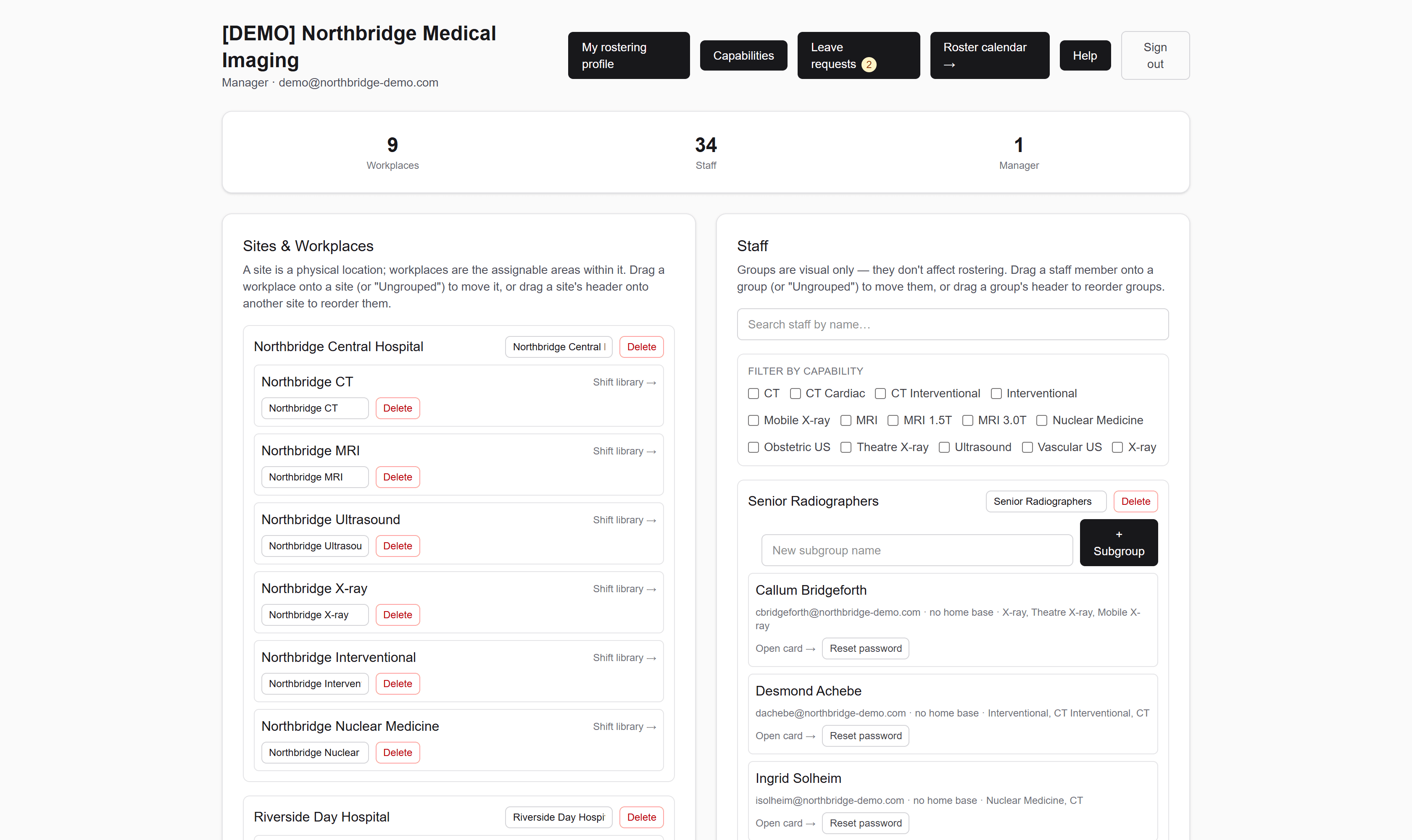
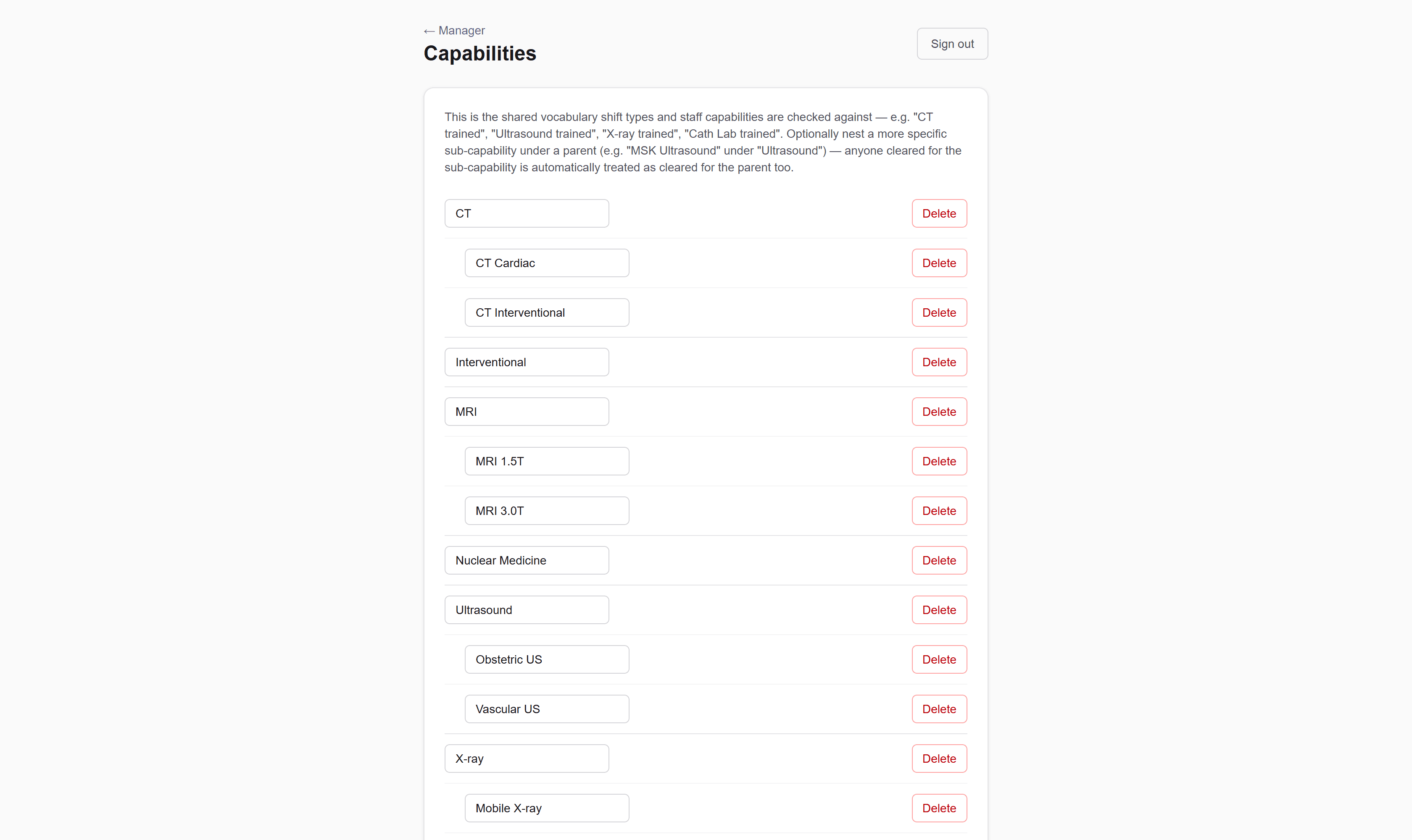
The leave requests awaiting a decision panel showing two requests: an eleven-day annual leave request listing the nine shifts that would need cover, with buttons to approve and unassign, approve and keep, or reject; and below it a two-day sick request marked as costing no cover. A search box sits above both.

Approving shows exactly which shifts stop being covered — and lets you decide whether to strip them or keep them. Once more than one request is waiting, a search box appears above the queue.

The Leave section of a staff card, headed “Approved days taken · last 12 months onwards — 280 days” with a per-type breakdown reading “Maternity / parental leave 280”, above the approved parental block running from 13 August 2026 to 19 May 2027.

The same person's total on their staff card. The window is a rolling twelve months with no upper bound, so leave already approved months ahead counts too — and a block straddling the cut-off counts its whole length, not just the part inside.

On-call rota

A published contact list for out of hours: who to ring, and on what number. It lives at Manager → On-call rotaand is a separate schedule from the roster — being on call doesn't occupy a shift and doesn't change anybody's working week.

Lines, not slots

The rota is built from lines— "1st on-call", "2nd on-call", "Interventional on-call". Each line carries its own hours and holds exactly one person per night. If two people are on at once, that is two lines, not two names in one cell.

  • Name — how the line is referred to on the floor. Rotas have a natural seniority order, so lines are shown in the order you arrange them rather than alphabetically.
  • Hours — the window the line covers. An overnight line ending before it starts (17:00 to 08:00) is normal and expected here; it is read as running through midnight.
  • Active — retiring a line stops it asking to be filled but keeps everything already assigned against it. A line with history behind it should be deactivated, not deleted.

Filling the grid

Lines run down, nights run across, a week at a time. Click a cell and pick somebody. A line doesn't have to run every night — leaving weekday cells empty on a weekend-only line is a normal state, not an unfilled gap demanding attention.

Contact numbers

Each person can carry two numbers, set on their staff card under Personal → Contact. They answer different questions at 2am: the mobileis the person, and the second number is wherever they are — home, a ward, a switchboard extension. Both are free text, so "Ext. 4471" and "0412 345 678 (after 8pm)" are both fine.

If anyone on the rota has no mobile on file, the page says so underneath the grid with a count.

What it deliberately does not do

  • It is not the roster.On-call doesn't count toward hours or FTE targets, and doesn't stop someone being rostered normally that day or the next morning. If you want that protection, it is the roster's minimum-rest rule that provides it — see Match settings.
  • Nothing is checked when you assign. No capability test, no rest test. The rota is a contact list, and you already know who is qualified to hold the pager.
  • Everyone can see it.Staff see the whole organisation's rota and the numbers on it — that is the point of publishing one. Only managers can change it.
Because on-call and the roster are genuinely separate, nothing stops you putting someone on a night line and on an early shift the next morning. That combination is legitimate in plenty of departments, so it is not blocked — but it is also not flagged, so it is worth a glance across both when you build the rota.
The on-call rota for one week, with 1st on-call, 2nd on-call and Interventional on-call as rows and the seven nights as columns. Each filled cell names a radiographer above their mobile number and a second contact number; the Interventional line is empty on several weeknights.

One line per concurrent duty, one person per night. The numbers come off each person's staff card, so the rota is the contact list.

The on-call lines configuration panel listing the three lines with their hours, each with controls to rename, reorder and deactivate.

Retiring a line stops it asking to be filled but keeps its history. A line with assignments behind it is deactivated, never deleted.

Placement students

A register of university students on clinical placement, at Manager → Placement students. Students are not staff: they hold no account, never appear on the roster, and cannot be auto-filled. This register is the only place they exist.

Adding a student

  • Name — the only required field. A register is worth keeping even when all anyone knows on the first morning is a name.
  • University and cohort — optional, and what the university asks about when it wants a record back.
  • Site — where they are placed. Optional, and set to a site rather than a workplace: students rotate around a building.
  • Supervisor — the named radiographer responsible for them. This is a real link to a staff member, not free text, so it follows a rename and survives them changing workplace.
  • Notes — up to 500 characters. Useful for the thing the next person on shift needs to know: what they are signed off for, what they must not do unsupervised.

Placement days are counted, not estimated

Each day a student attends is recorded individually, so the total is exactly the days attended rather than a span with weekends guessed out of it. Universities ask for a number and it has to be right.

Adding them one at a time would be miserable, so days are added a range at a time — pick a start and an end, optionally weekdays only, and the range expands into individual days. Re-adding an overlapping range is safe: it adds only the days that were missing, so extending a placement never double-counts. Remove the odd day when somebody is off sick.

Archiving

When a placement finishes, archivethe student rather than deleting them. Archiving keeps the day count for the university's records and takes them off the current list. The page header toggles between Current and Archived, each with its own count.

Who can see this

Managers only. Staff — including a student's own supervisor — have no access to the register at all. It is administrative record-keeping about people who are not members of the organisation, and it carries a free-text notes field, so it is not published the way the roster and the on-call rota are.

Because students never appear on the roster, they are invisible to coverage and auto-fill: a student on placement does not make a shift any more staffed, and the matching engine will not count them toward filling it. That is deliberate — a student is supervised, not counted as staffing — but it does mean the supervising radiographer's own workload is not automatically reduced. A roster note on the supervisor for that week is the usual way to record it.
The placement register showing two students, each with their university, cohort, site and named supervisor, a large placement-day count, and a form to add a date range with a weekdays-only option.

Every placement day is a row, so the count is the days attended rather than a span with weekends guessed out of it.

Passwords & accounts

New accounts are created with a temporary password — one you choose when adding someone individually, or a fixed shared one when importing in bulk — and every account is forced to replace it before it can be used properly.

Where the first password comes from

  • Adding one person at a time— you choose their temporary password on the "Add staff member" form. Minimum 8 characters.
  • Bulk import— you don't get to choose. Every imported account is created with the same fixed temporary password, Today1234!, and there's no field on the import page to change it. Everyone imported in a batch therefore shares a password until they each sign in and replace it, so it's worth importing and onboarding in reasonably prompt succession rather than months apart.

The forced-change gate

However the account was created, the first time they sign in (or any time this flag is still set), they're redirected straight to a "Set a new password" screen and can't reach the roster or anything else in the app until they've chosen their own password (minimum 8 characters, entered twice). This check runs on every page load while the flag is set, not just once at login, so it can't be bypassed by navigating directly to a different page.

Resetting a password later

  • "Reset password" on the Staff list— generates a brand-new random temporary password and shows it to you exactly once, in an on-screen box with a Copy button — pass it on to that person now, since it's never shown again and never logged anywhere.
  • "Reset password" on the staff card's Personal tab — a shortcut that resets straight to the shared default temporary password (Today1234!) instead of generating a random one — handy when you'd rather not have to relay a one-off password out of band.

Either way, the account's current password stops working immediately and the forced-change flag is set again, so the person is walked through "Set a new password" on their very next sign-in.

Both reset buttons ask for confirmation before doing anything, since the change is immediate and the old password can't be recovered once it's replaced.

For staff

Reading your roster, and asking for time off.

Staff sign in to their own view: what they're working, what the rest of the department is working, and the one thing they can change themselves. Eight short topics, start to finish.

Getting in the first time

You don't sign yourself up for RadCalendar. Your manager creates your account, and the first time you sign in you'll be asked to replace the password they set with one only you know.

Your first sign-in

  • Your manager gives you your email address and a temporary password. RadCalendar doesn't email it to you — they hand it over however they normally would.
  • Sign in with those details. You'll land on Set a new password rather than your roster.
  • Choose a password of at least eight characters and type it twice. Once it's saved you go straight to your roster, and you won't be asked again.

Until you've done this you can't get to any other page — the temporary password was known by someone else, so nothing is reachable until it isn't your password any more.

If you forget it later

There's no self-service reset. Ask your manager: they can issue you a fresh temporary password, and you'll be walked through the same set-a-password step again the next time you sign in.

Your account belongs to one organisation. If you work for two departments that both use RadCalendar, they're separate accounts with separate sign-ins — one won't show you the other's roster.
The RadCalendar sign-in screen, with email and password fields on a card over a soft gradient background.

Your manager creates the account. The first sign-in asks you to replace their temporary password.

Your upcoming shifts

The quickest answer to "what am I on next?" is the list near the top of your roster page, headed Your upcoming shifts. It shows only your own work — nobody else's.

What each row tells you

  • The date, and a coloured dot matching how that shift is coloured everywhere else in RadCalendar.
  • The shift name and its hours— for example "CT Early (07:00–15:30)".
  • The workplaceit's at, which matters when your department runs across more than one site.

How far ahead it looks

It starts from today and shows your next fourteen shifts — not fourteen days, fourteen shifts. How far into the future that reaches depends entirely on how much you work. To look further out, or to see a particular week, use the roster below it.

If it says "Nothing on your roster yet", you genuinely have no future shifts assigned. That's normal for a new starter, or if the roster for the coming period hasn't been built yet.

Approved leave sits above it

When you have approved leave coming up, a Your approved leave list appears aboveyour shifts, showing each block's dates and type. It's deliberately first: when both are true, whether you're off outranks what you're working.

This list is what's on the roster right now, not a promise. A manager can change a shift after you've looked, and nothing notifies you when they do — so check it again close to the day rather than relying on a screenshot from last week.
A staff member's roster page listing their own upcoming shifts by date, shift name, hours and workplace, above the read-only organisation-wide roster grid.

Your own shifts first, then the whole department's week underneath.

The org roster

Below your own shifts is the Org roster— the whole department's week, not just yours. One row per workplace, one column per day, and every assignment in it.

Reading the grid

  • Each cell holds the shifts running at that workplace on that day, as coloured chips reading name — shift, e.g. "Marguerite Okonkwo — CT Cardiac".
  • A dash () means nothing is rostered there that day. That might be because the workplace doesn't run that day, or because the slot is still unfilled — the grid doesn't distinguish the two.
  • ← Prev week, Today and Next week → move the window a week at a time. On a narrow screen the grid scrolls sideways.
  • The date boxbeside those buttons jumps straight to any week — pick any day and you land on the Mon–Sun week containing it, so there's no need to click Next repeatedly to reach something months out. The box then shows that week's Monday.

Why you can see everyone

It's the same roster your manager builds, shown read-only. Knowing who else is on today is most of the point: it's how you work out who's covering the other scanner, who to hand over to, and whether the person you need to ask something is even in.

It covers the whole organisation, not just your home workplace — every site and every workplace your department has set up.

Your leave shows in the day headers

On days you have approved leave, a small green chip appears next to the date at the top of the column — Leave, Sick, Parental or Unpaid depending on the type. It sits in the header rather than in a cell because leave belongs to you, not to any one workplace.

Those chips are yours alone. You never see a colleague's leave here, and they never see yours — someone else's week simply shows the shifts they're on.

Week, month and year

Three tabs — Week, Month, Year— sit between your shift list and the roster. They change how far ahead you're looking, and they keep the same date in view as you switch.

Week

  • The default, and the only one that names names: one row per workplace, one column per day, every assignment written out.
  • Of the three roster zoom levels, this is the only one that shows your leave chips. Your Leave page has its own calendar separately, in both month and year form, which is the place to go for a picture of your time off — see Requesting leave.

Month

  • A calendar grid. Each day carries a count like "14/21 filled"— how many of that day's shifts across the whole organisation have somebody on them, out of how many exist.
  • A day showing has no shifts scheduled at all.
  • Click any day to jump to the Week view containing it.

Year

  • All twelve months at once, each with its own filled count, for spotting quiet and busy stretches.
  • Click a month to open its Month view.
The counts are organisation-wide, not personal. "14/21 filled" says nothing about whether you are working that day — for that, use Week, or your own upcoming-shifts list.

Requesting leave

Requesting time off is the one thing in RadCalendar you can action yourself. The Leave button at the top of your roster page opens your own leave page.

The calendar

Beside the form is a month calendar of your own leave. Filled, coloured days are approved — the colour is the kind of leave, and a key under the calendar names the ones showing. Dashed amber days marked Askedare requests your manager hasn't decided yet, and those stay amber whatever kind of leave you asked for. Today is underlined, and the arrows move a month at a time.

Clicking a day fills it into First day below — that is all it does. Nothing is requested until you press Submit request, and you can always type the dates in directly instead. You can't book your own leave from the calendar; only your manager can approve it.

Month and Year

The Month / Year buttons above the calendar switch between the two. Yearlays out all twelve months at once, marked exactly the same way — approved days in their leave type's colour, dashed amber for still waiting — plus a day count under each month and a running total for the year. It's the quick way to see how your time off is spread out before asking for more.

The arrows beside the buttons move a year at a time in Year view, and a month at a time in Month view. Leave that runs across a month or year boundary is counted in each part it actually covers: a block from 28 December to 5 January shows four days in December and five in January, not nine in both. Click any month tile to open that month.

Switching views changes nothing you've typed — the request form beside it keeps whatever is in it, including a date you already picked.

Making a request

  1. Pick a First day — click it on the calendar, or type it.
  2. Pick a Last dayif it's more than one day. It's optional — leave it empty for a single day off.
  3. Choose a Type. The list is your organisation's own — most start with annual, sick, maternity/parental, unpaid, other, RDO and ADO, but your manager can add to it or rename things to match how your service works. The first one is preselected.
  4. Optionally add a Note for your manager— up to 500 characters. Use it for the thing that isn't obvious from the dates, like already having arranged cover.
  5. Press Submit request.

What the dates mean

Both ends are inclusive— 18 to 20 August is three days off, not two. Requests are whole days; there's no half-day or by-the-hour option.

You can request leave for dates you're already rostered on. That is the normal case, and your manager is shown exactly which shifts would need covering before they decide.

What gets refused

  • A last day before the first day.
  • Dates already covered by leave that's been approved — you'll be told "You already have approved leave covering some of those dates". There's nothing to decide, so there's nothing to submit.

Overlapping pending requests are allowed on purpose, so you can put two possible ranges in front of your manager and let them pick.

Nothing is sent to your manager when you submit. They see a count next to their dashboard link the next time they open RadCalendar. If it's urgent or last-minute, tell them directly as well — the request is a record, not a notification.
The staff leave page in year view: a Month and Year toggle with Year selected, twelve month tiles for 2026 with an eleven-day pending request marked across August, a legend distinguishing approved leave from requests awaiting a manager, and the request form for first day, last day, type and a note alongside.

Ask for time off, then track it. The calendar switches between one month and the whole year, marking approved leave and still-waiting requests differently.

After you've asked

Your leave page is also the record of everything you've asked for. Current and upcoming holds anything still to come or still running; Pastappears underneath once there's history to show.

The three states

  • Awaiting manager (amber) — submitted, not yet decided.
  • Approved(green) — you're off, and the roster will be planned around it.
  • Not approved (grey) — declined. The dates are yours again; you can submit something different.

Each row shows the range, a day count, the type, your own note in quotes, and — if your manager wrote one — a reply labelled Manager:. A decision doesn't require a note, so plenty of approvals arrive without one.

Finding an old one

Once you have more than one record on file, a search box appears above the list. It matches anything the row displays — the type, the dates as they're written ("Dec", "2027"), the status, and either note. It searches both sections at once, so a match in Past still shows up. Clearing the box puts everything back; nothing is ever deleted by searching.

Cancelling

While a request is still Awaiting manager, a Cancellink sits beside it and withdraws it immediately. Once it's Approved that link is gone: the roster has been planned around you being away, and possibly re-covered, so getting it back has to be a conversation rather than a click.

What approval actually changes

  • The block appears in Your approved leave on your roster page, and as a chip on each day it covers.
  • RadCalendar stops offering you to your manager for those dates — you won't be suggested or auto-filled into shifts while you're away.
  • Shifts you were alreadyrostered on are a separate decision. Your manager chooses whether to strip them off or keep them, so approved leave doesn't silently empty your week.
A rostered shift left on a day you're approved off is flagged to your manager as a conflict, but it isn't removed automatically. If you see one on a day you're meant to be away, say something — it's more likely an oversight than a plan.

What you can't change yourself

Leave is the only thing you can change yourself. Everything else on the roster is your manager's to alter — not because you're not trusted, but because one person has to hold the whole picture for the cover to add up.

Things to take to your manager

  • A shift that looks wrong— wrong day, wrong workplace, or one you didn't expect.
  • Swapping with a colleague.Agree it between you first, then ask your manager to make the change. There's no swap request in RadCalendar; a swap is just two reassignments they make on the calendar.
  • Anything about your hours or targets— your FTE target, your usual days, the workplaces you're rostered to. Those live on your staff card, which only a manager can open.
  • Your capabilities.Which modalities you're signed off on decides which shifts you can be put on at all. If something is missing you'll quietly stop being offered that work, so it's worth raising.

Why the roster is read-only for you

RadCalendar refuses roster edits from a staff account outright — not by hiding the buttons, but at the point the change would be saved. So there's no arrangement of clicks that lets you assign yourself a shift, and equally no way to remove yourself from one by accident.

Nothing you do here reaches your manager on its own — not a submitted leave request, and certainly not a shift you think is wrong. If it matters today, tell them today.

What other people can see

You can see the whole department's roster, so it's fair to ask what the whole department can see of you. The short version: your shifts are shared, your leave is not.

Everyone in your organisation can see

  • Which shifts you're on, and where — your name appears on the org roster exactly as everyone else's does.
  • Your account details as a colleague would need them — your name and work email are shared inside your organisation, the way a staff directory is. Nothing is visible outside it: RadCalendar accounts are scoped to one organisation, and another department using RadCalendar can see none of your data at all.

Only you and your managers can see

  • Your leave — the dates, the type, and the note you wrote. A colleague looking at the same roster sees no leave chips for you, and no gap explained. This matters most for the types that disclose something personal: sick and parental leave are never shown to your co-workers.
  • Requests that were declined, and anything you cancelled. Neither appears anywhere a colleague can reach.

Things you can't see either

Plenty of what drives the roster is manager-only, and you have no view of it: other people's leave, the notes managers keep on staff, fixed-day constraints, bank and agency availability, training assignments, workplace shutdowns, and the org-wide matching rules. If a shift you expected went to someone else, the reasoning behind it isn't something this page is hiding from you — it genuinely isn't yours to read.

One practical consequence: because your leave is invisible to colleagues, nobody else knows you're away unless you or your manager tells them. Approved leave stops you being rostered; it doesn't announce anything.

Ready to use it rather than read about it?

Sign in to your department’s RadCalendar, or talk to your manager about getting an account.